
List of supported variable types are.
- Boolean: It is of type True or False
- Integer: It accepts whole number numeric values e.g., 1,2,3,4 etc.
- Float: It accepts decimal numeric values e.g., 1.2, 2.4, 3.45 etc.
- String: It accepts text input e.g., Hello, World, Power, Automate etc.
- Object: It contains key value pair properties which is in JSON format.
- Array: It is list of objects which can be either number or string that have same data type
Type variable to see the operations on variable as below
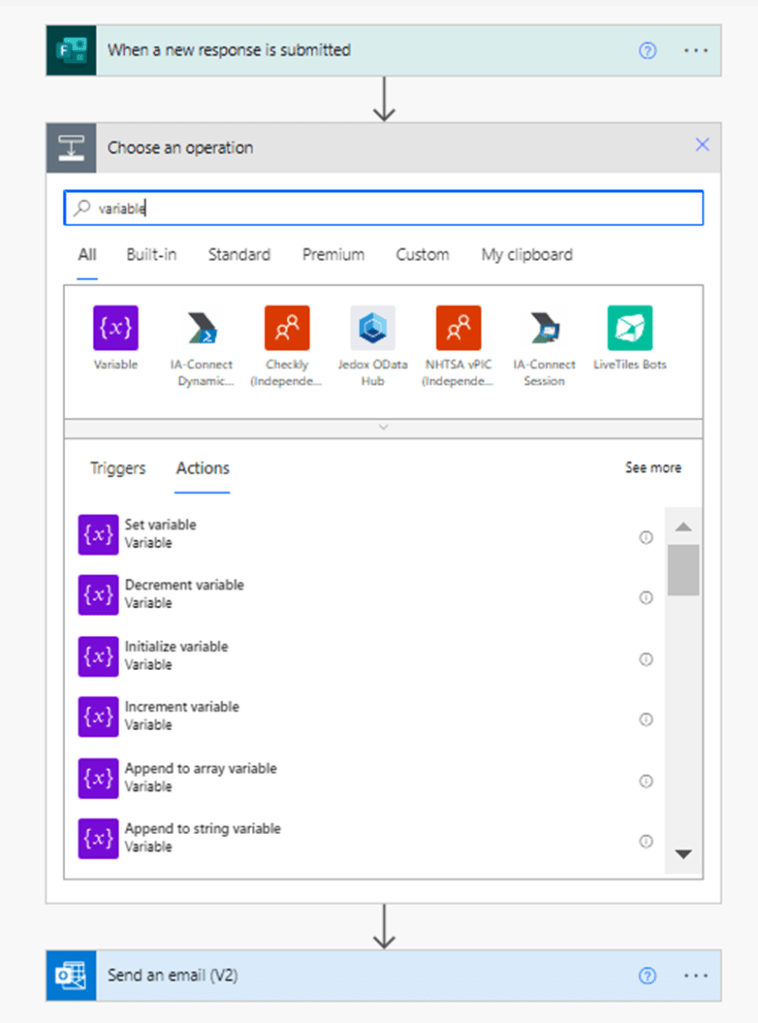
Then select initialize variable as below –
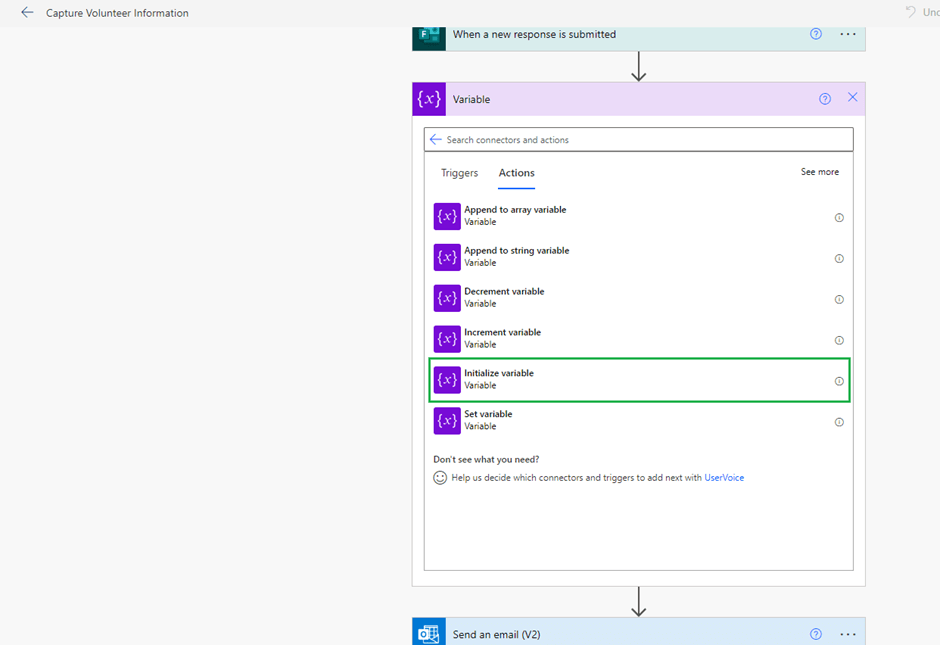
Once Initialize variable selected, you need to fill mandatory parameters Name of Variable and Type as shown

To use format data by example for expressions here is the below step
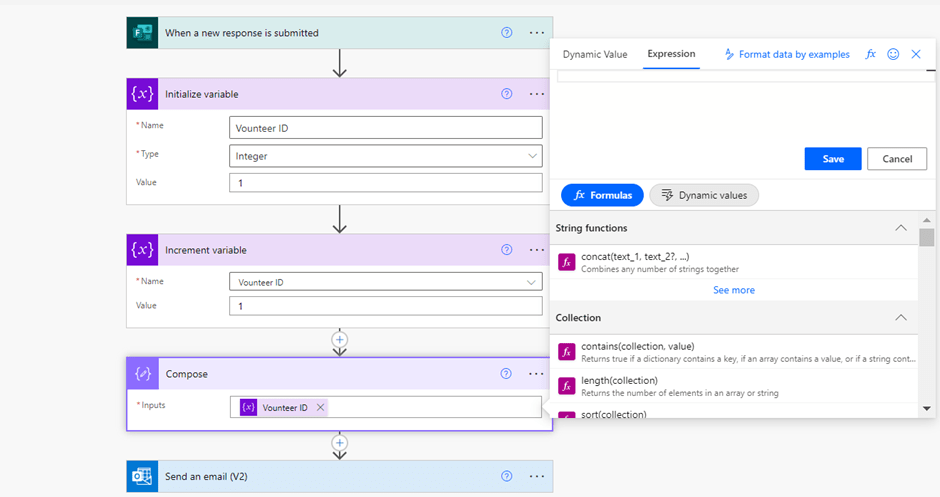
on click of format data by examples below screen will display
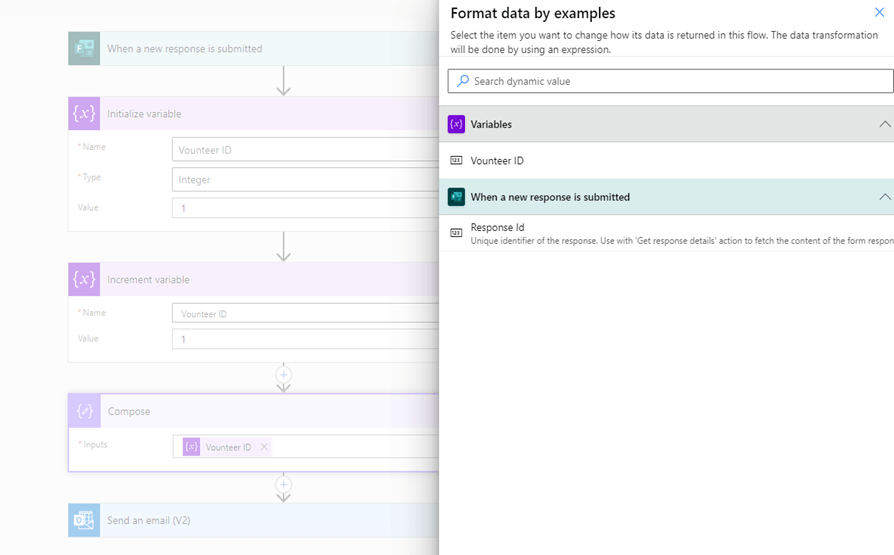
Let’s say I want to know the expression to auto increment variable Volunteer ID here is the step – Select Volunteer ID and it will display screen as below
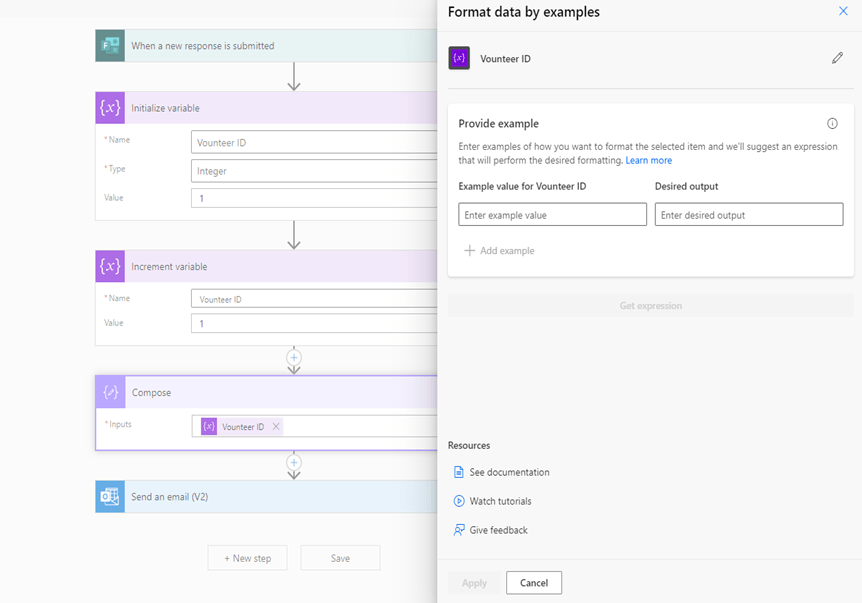
Provide examples of input and desired output
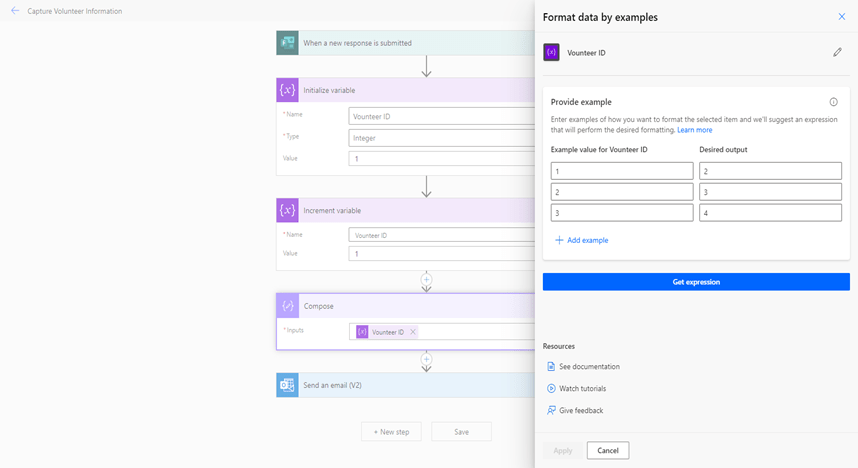
Then click on Get Expression it will display a suggested expression as highlighted below
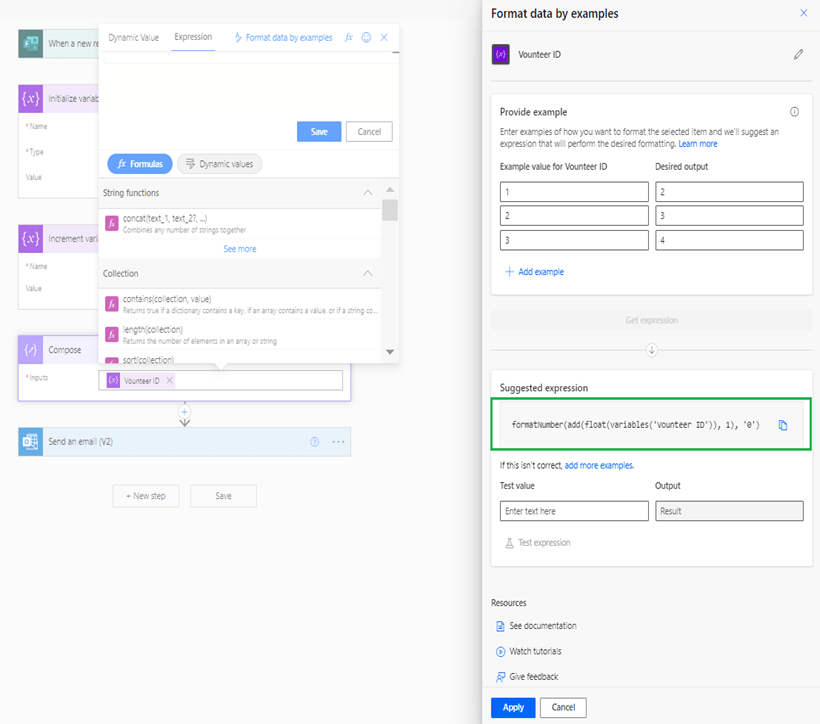
If you want to test the expression, then enter the input under Test Value and click on Test Expression as shown below. Then click on Apply to use the expression.
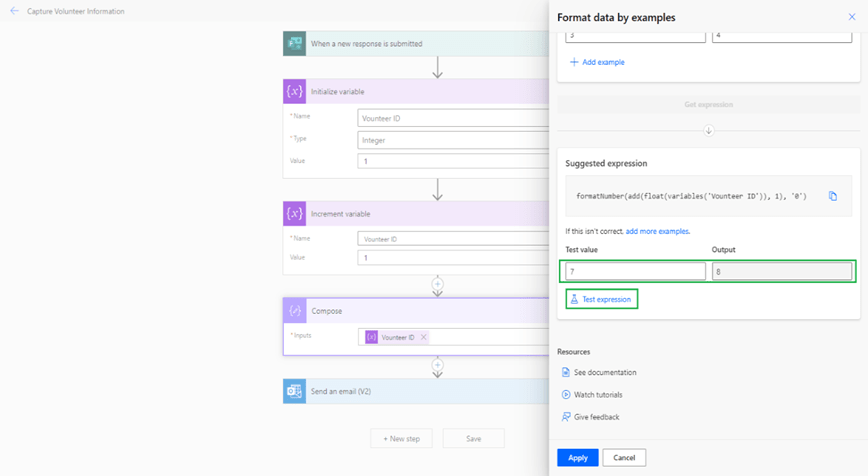
Then it will add the expression under expression field.
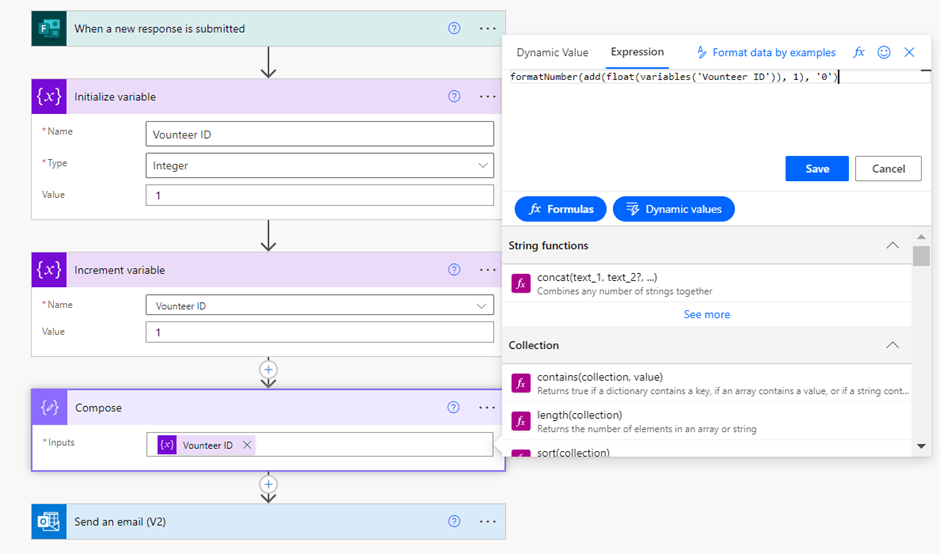
If you knows the functions then directly you can add below expression
Then click on save to add the expression to the compose.
formatNumber(add(float(variables(‘Vounteer ID’)), 1), ‘0’)

 GM Dynamics & Agentic AI Consulting