
- Navigate to https://learn.microsoft.com/en-us/dynamics365/contact-center/implement/try-dynamics365-contact-center
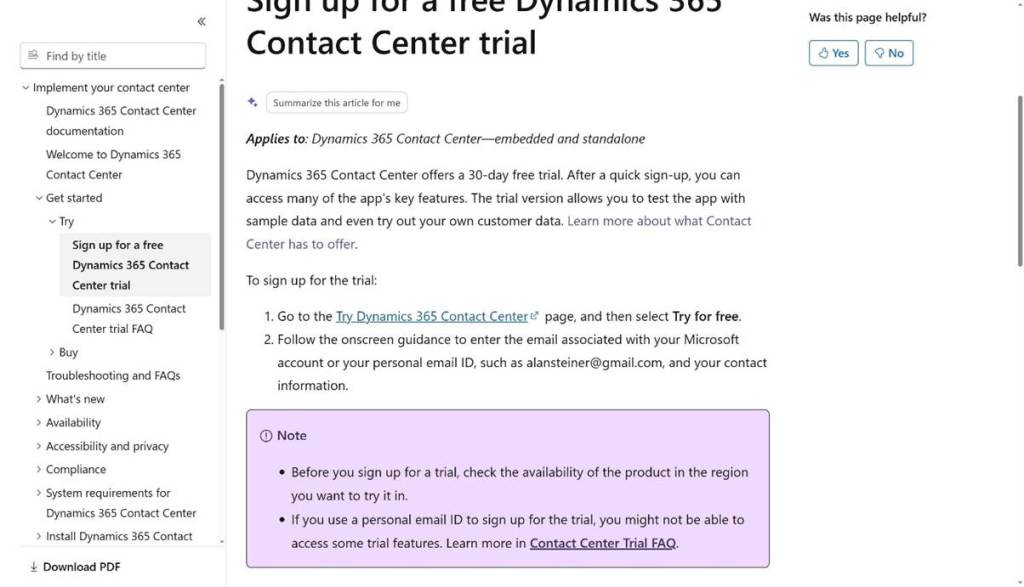
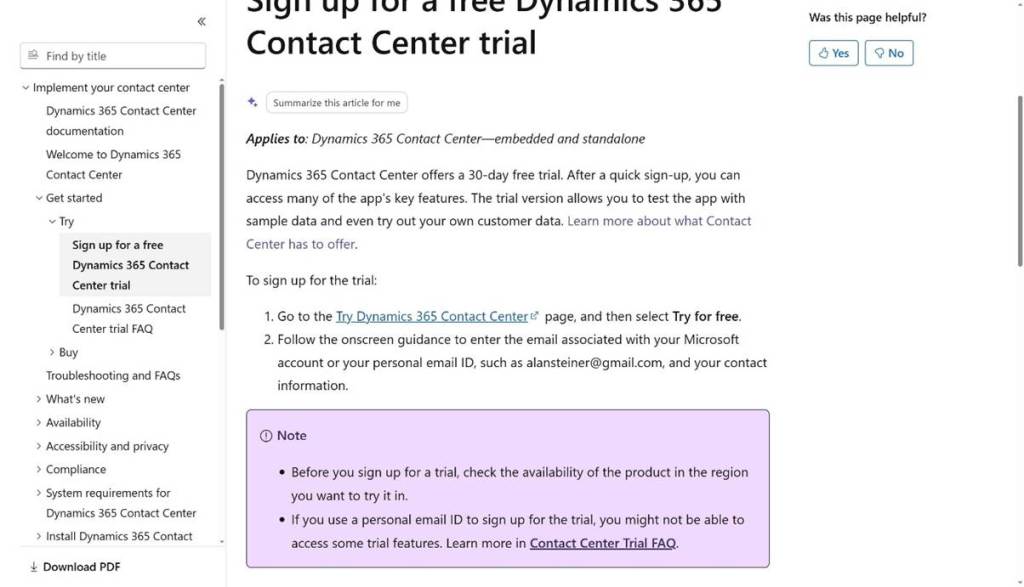
2. Click “Try Dynamics 365 Contact Center”
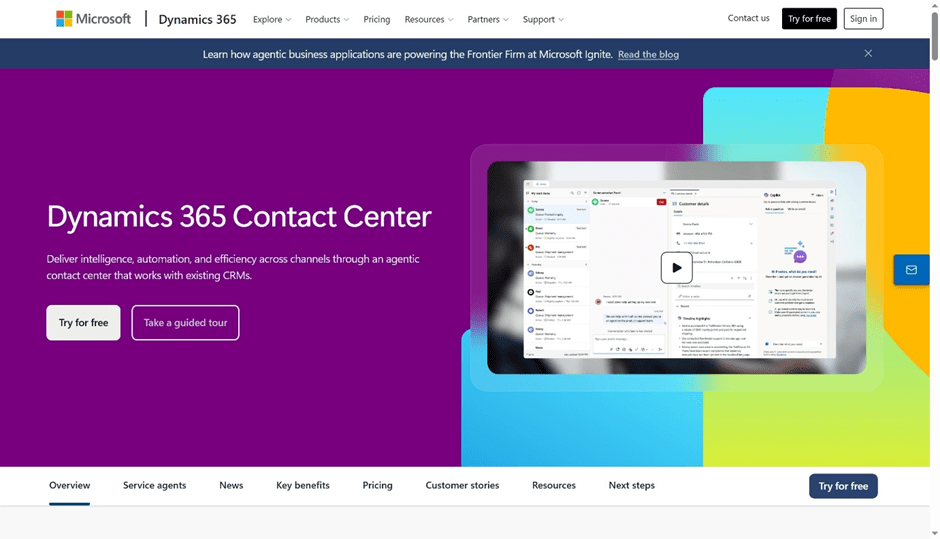
3. Click “Try for free”. Pass your credentials and basic information to get provisioned for 1 month trial.
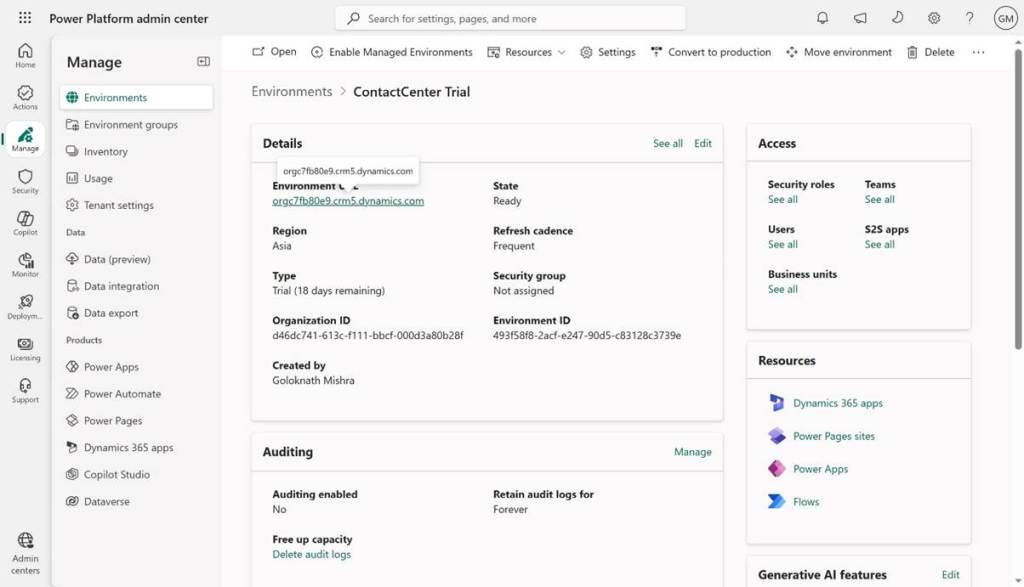
4. Once setup is done open “Power Platform admin center” –> Manage –> Environment –> Select the instance.
5. After opening the instance URL. Click “Create contact center”
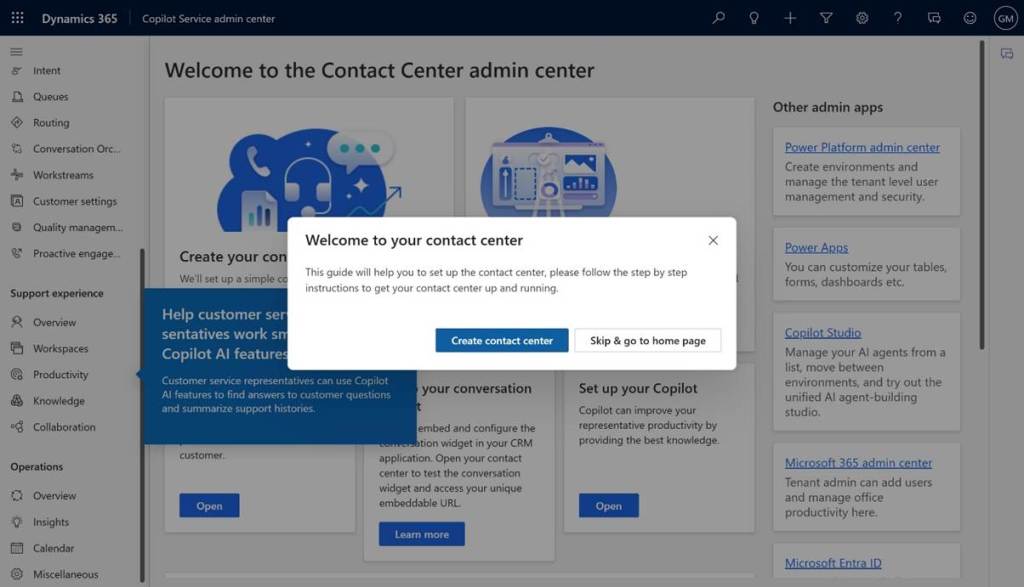
6. It will take some time to configure and it will provide the URL as below
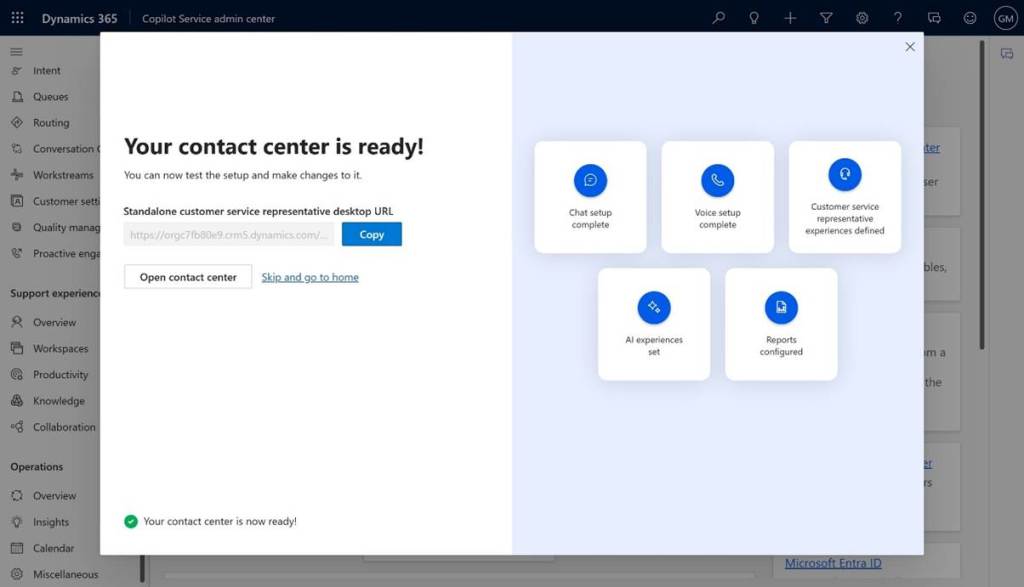
7. Click “Open contact center”
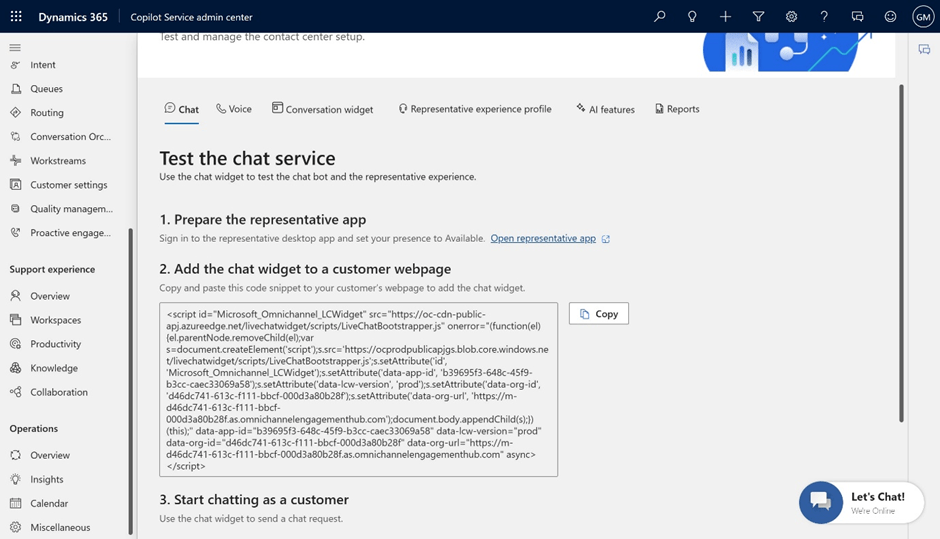
8. Configure “Chat” and it can be embedded in any website by just copying the code.
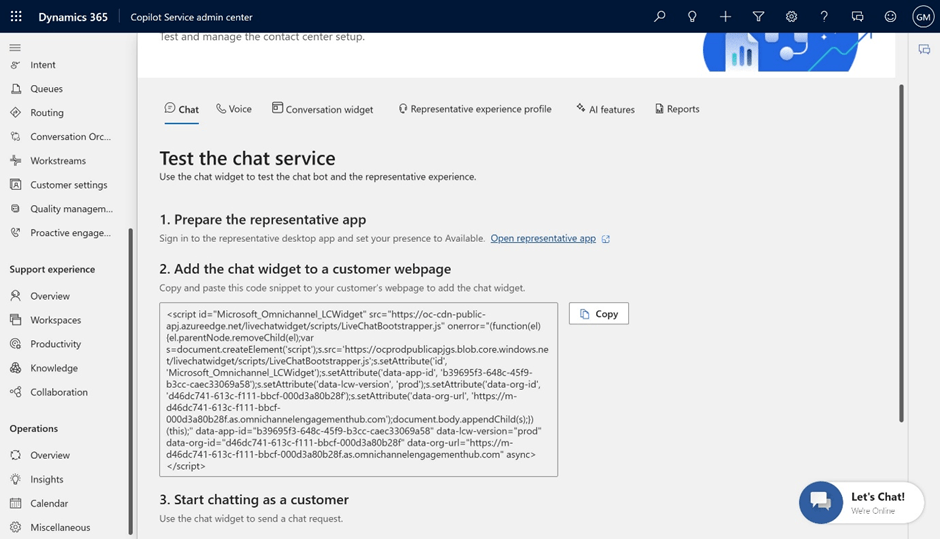
9. Click “Voice” to configure voice channel
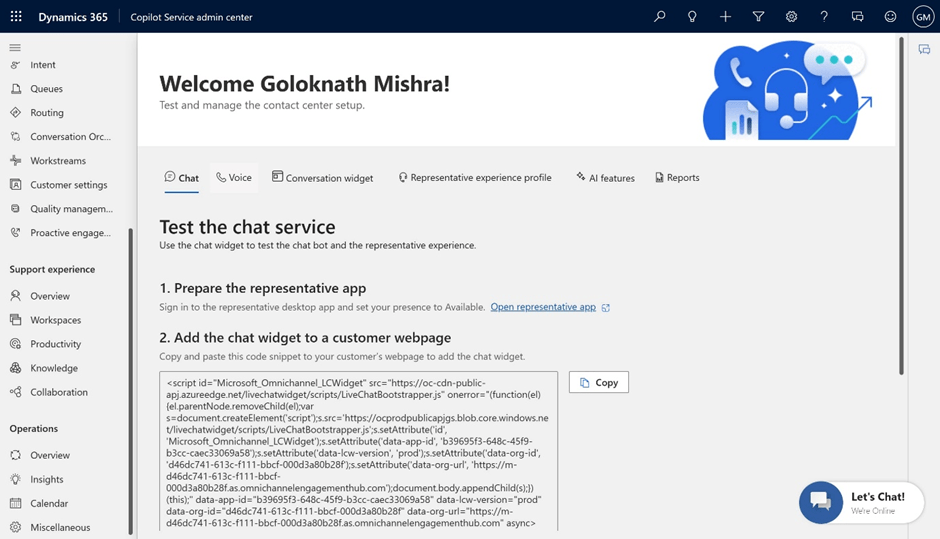
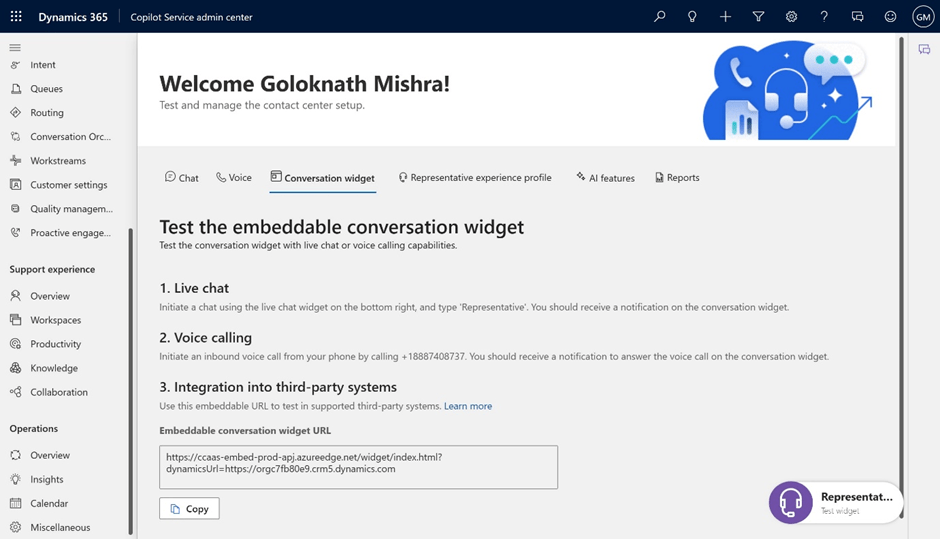
10. Click “Conversation widget” it has code sample to embed in any other 3rd party system
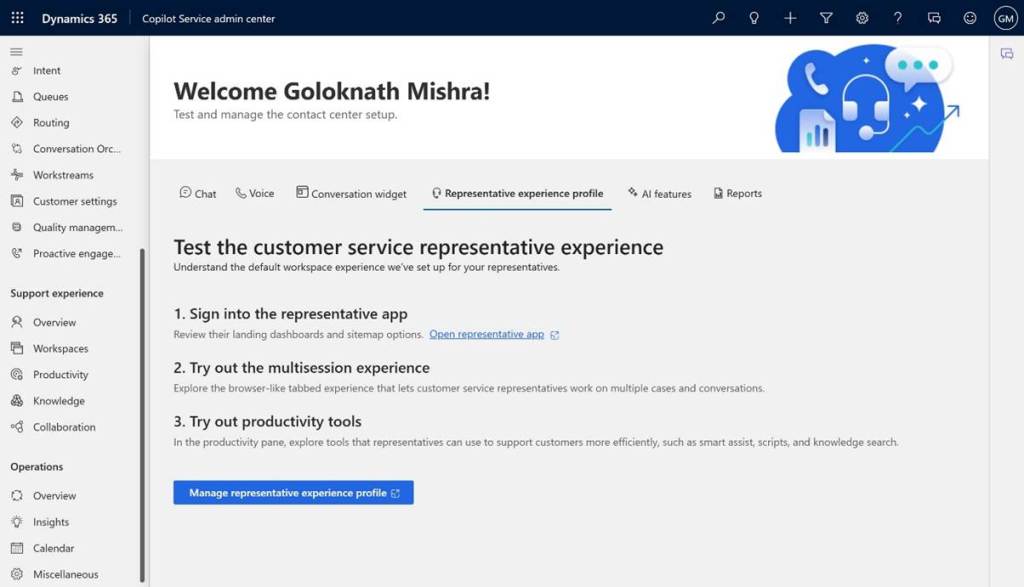
11. Click “Representative experience profile” to manage representative experience profile.
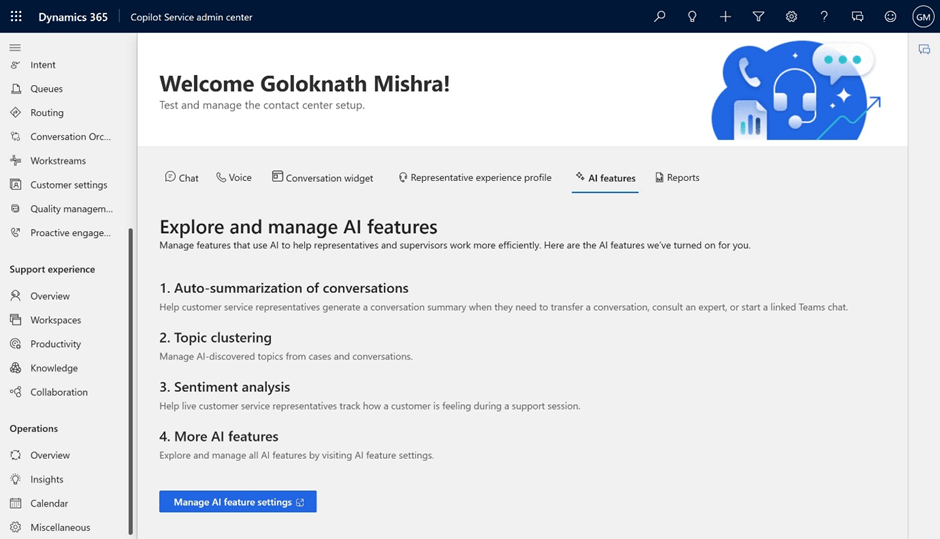
12. Click “AI features” to configure AI features
13. Click “Reports” to manage and configure report setting.
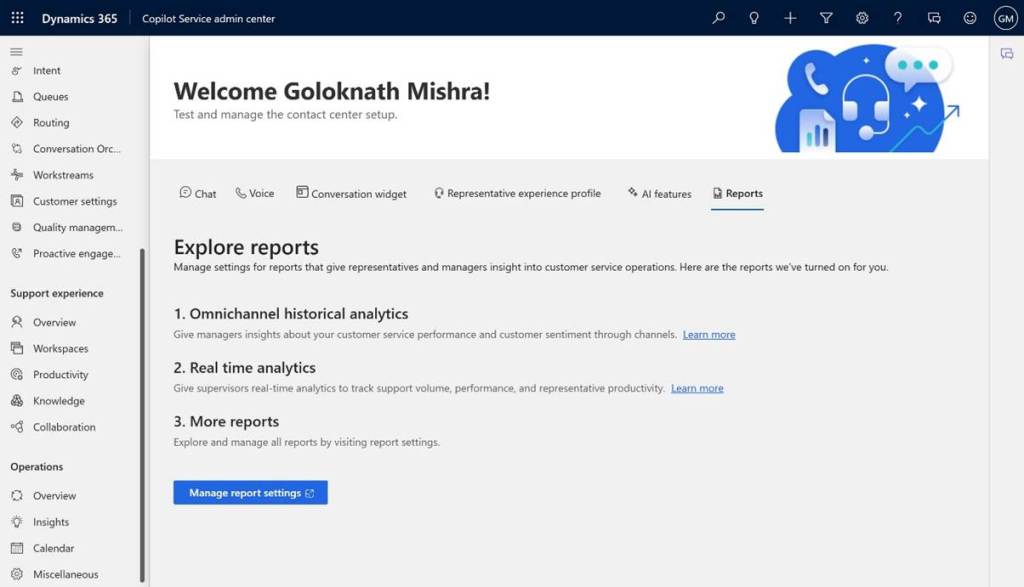
This completes the basic setup of Dynamics 365 Contact Centre with minimum required channels.

 GM Dynamics & Agentic AI Consulting