
Uncategorized

Power Pages

Create a trial account to check the Power Pages.
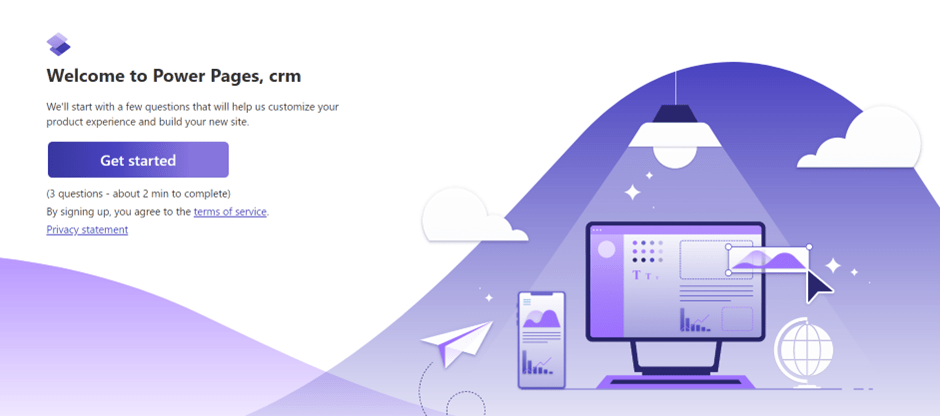
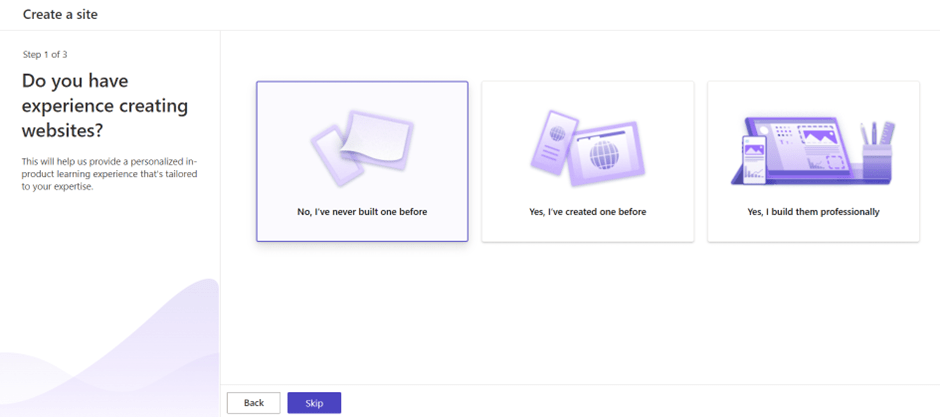
Next page will be as under then you can select as per your preference, or you can skip too. But I selected as I don’t have any experience to see what’s next for me 😊
Next, I have been prompted with, to select a template for my site or else you can select Blank page too to start from scratch.
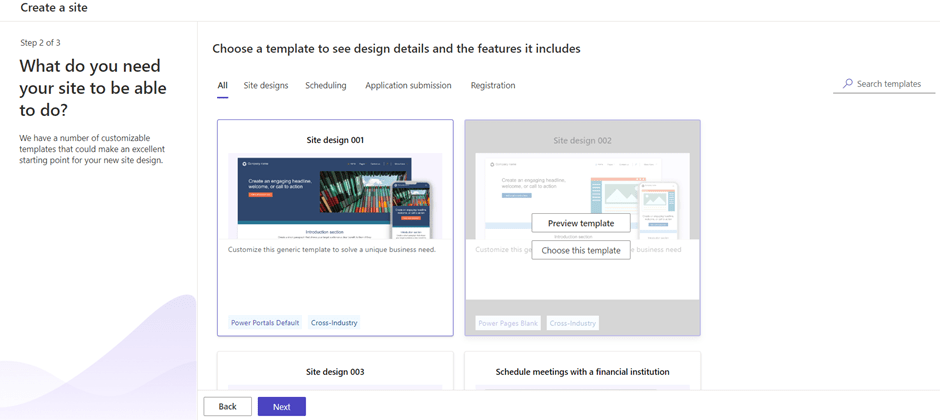
Let’s proceed to select an existing template as I am a layman. You can preview the template before selecting in Desktop and Mobile mode. If you want to proceed with the template, click on ‘Choose this template’.

After choosing the template it will prompt us to select site name and available web address as per below snapshot.

Once you click on ‘Done’ then it will display a design studio with tools to build my website. You can preview the site clicking on Preview button on right top.

Under Pages tab you can add and modify pages.

Under Styling tab, you can add and modify designs of the page with styling options.

Under Data tab you can add your fresh new table, or you can use existing table from Dataverse.
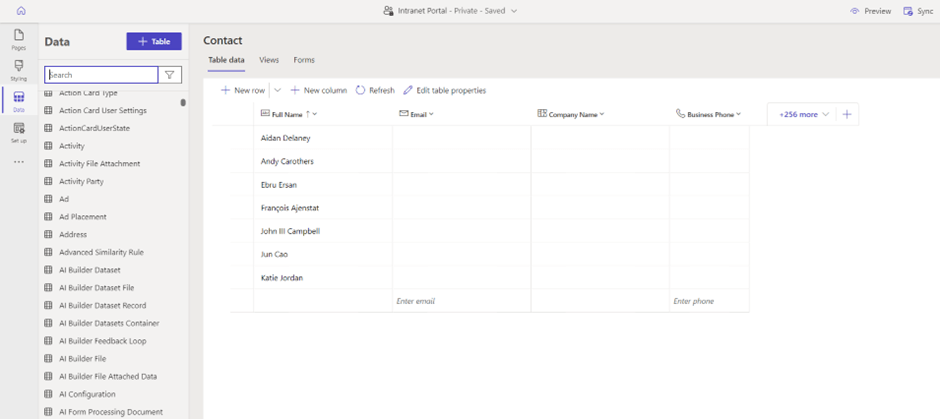
Under Setup tab you can add your security settings and permissions.
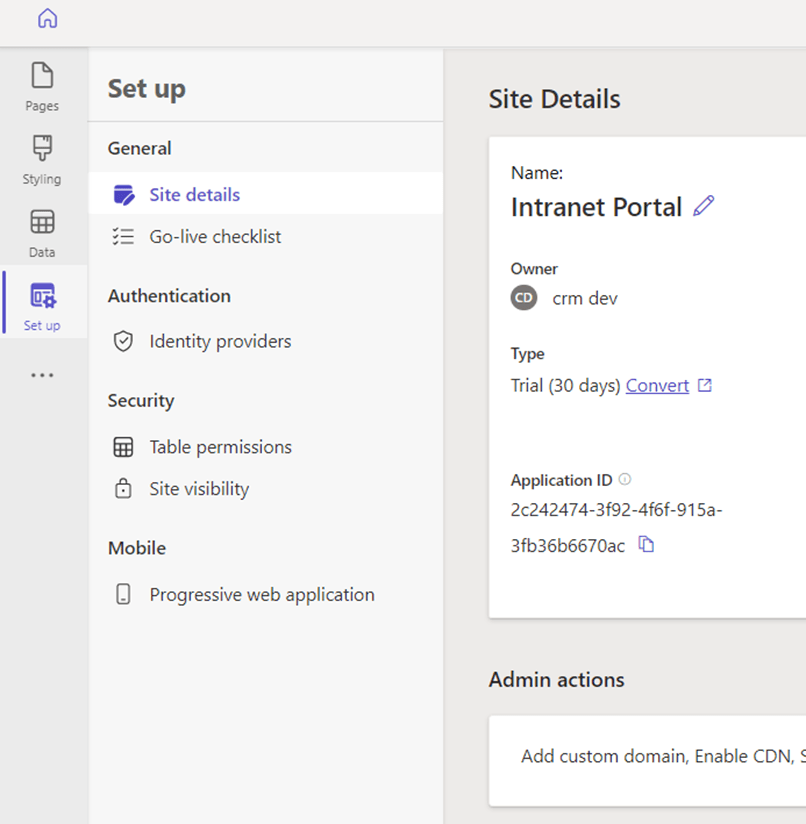
If you have no coding experience then you can use the tools available on design studio or else you can use ‘Edit Code’ on right top to write the code for your site and then sync it to reflect as under,

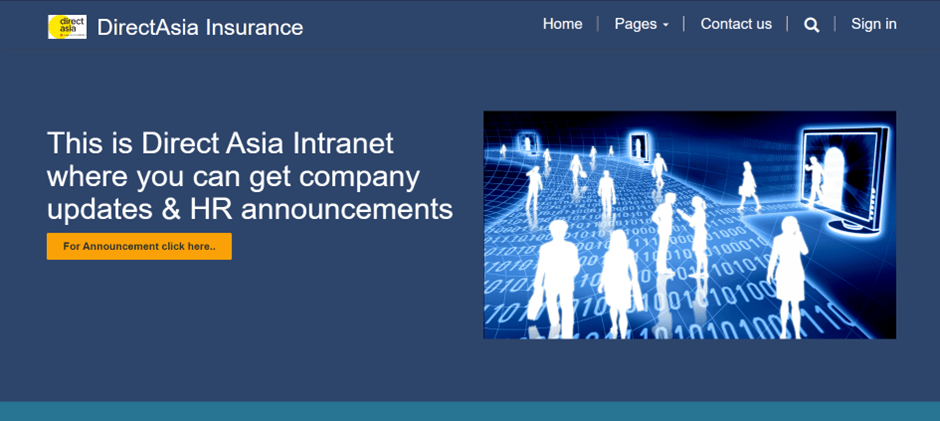
 After easy modifications and changes now, my site is ready as under,
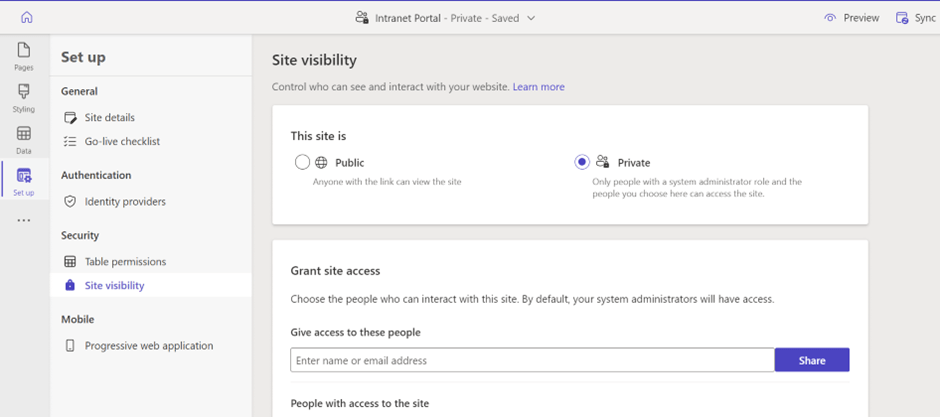
By Default site is Private which you can configure to make it public using set up tab as under,
Uncategorized

SharePoint cloud actions in Power Automate for Desktop: Introducing cloud connectors in desktop flows

Power Automate offers a rich experience when it comes to connecting to other services. With a toolkit of over 780 connectors, cloud flows can interact with the most popular services that are accessible by API.

Using cloud connectors in RPA scenarios was a more complex and time-consuming process as, in many cases, it required loops between cloud and desktop flows. Now Microsoft made available all cloud connectors from within Power Automate desktop’s designer.

Please refer below link for more information –

Uncategorized

Dataverse Tables

A Table is a collection of records with different types of data related to the particular entity.

Table is a kind of container which contains multiple types of data.

Each table corresponds to database table and each column which is also known as attribute within a table represent a column in that table.

What is Metadata?

In Dataverse metadata (data about data) is a collection of tables. Table metadata is what controls the kinds of rows you can create and what kind of actions performed on them.

Standard Vs Custom Tables:

Standard tables are those whose comes up with your dataverse environment whereas Custom tables will create as per the requirement of data.

You can edit the name of the standard tables and their columns as well but can’t be delete it whereas in custom tables you can edit the name of tables and columns, also you can delete your custom table.

Usually with standard tables you can continue your work as you expected with some minor changes of edit the table or column name but if standard table does not match your business requirement then its mandatory to create your own custom tables.

Table Relationships:

In normal database we have multiple types of relationships to connect multiple tables to achieve the desired goal. In Dataverse, we have only two types of relationships:

One-to-Many:

In one-to-many relationship, many table rows are associated with single primary row table in a parent/child relationship. In this relation, one parent can have multiple child with different attributes to achieve the goal.

Many-to-Many:

In many-to-many relationship, many table rows are associated with many other table rows. Those rows that are related with N:N relationships are considered peers. In this relation, many table rows are associate with other table rows to performed actions on them. Many-to-Many relationship is most commonly used relation between tables.

Types of Tables:

In dataverse we have two types of tables exist, you should understand these types of tables of dataverse. Once custom table created then you cannot change its type. We have following two types of tables in dataverse:

User or Team Owned:

In this type actions can be performed on user level or team level. Only users or team can be performed actions on it according to their rights

Organization Owned:

Access to data is controlled on Organization level. In this type any organization user who have rights at organization level can be performed actions on it.

Uncategorized

Public preview of Power Automate’s newest Android mobile app version

A new version of the Power Automate Android app is now available in public preview!

Preview functionality

As before, the app allows you to run your instant flows (formerly known as “button” flows) with the tap of a finger- including support for widgets so you can create shortcuts to your instant flows on your mobile device’s home screen! You can also view and respond to approvals while you’re away from your desk, send and receive push notifications, see the run history of your flows, etc.

Screenshots of mobile app instant flows, approvals, and notifications
Left: Quickly trigger an instant flow, Middle: Easily view and respond to approvals, Right: View your flow notifications and alerts

Please refer below link for more information –

Uncategorized

Creating canvas apps as Dataverse solutions by default (preview)

Microsoft announced the public preview of canvas apps in Dataverse solutions by default.

Solutions are used to transport apps and components from one environment to another or to apply a set of customizations to existing apps. A solution can contain one or more apps as well as other objects such as site maps, tables, processes, web resources, choices, flows, and more. A solution and its objects are stored in Microsoft Dataverse. Solutions are also the key mechanism for implementing application lifecycle management (ALM) in the Power Platform. For more information about solutions, see Solutions overview, and application lifecycle management (ALM) guide

Unlike model-driven apps and most other objects, makers can optionally create their canvas apps outside of a solution and outside Dataverse. This can lead to unhealthy ALM practices, and create an overhead for DevOps teams and admins as they try to automate their ALM process.

With this feature, environment admins will be able to set citizen makers and developers in a healthy ALM ready state from day one by enabling canvas apps as Dataverse solutions by default for one or more environments.

Please refer below link for more information –