Currencies in Dynamics 365 Sales

Currencies determine the prices for products in the product catalog and the cost of transactions, such as sales orders. If your customers are spread across geographies, add their currencies to manage your transactions. Add the currencies that are most appropriate for your current and future business needs. Dynamics 365 supports multiple currencies.
When setting up your currency settings, you can customize the following information:
Currency type: Which currency, or currencies, you’d like to use.
Currency code: Short form of the currency (for example, USD for United States Dollar).
Currency precision: Number of decimals you want to use for the currency. You can add a value between 0 and 4.
Currency name: Unless you selected a custom currency for “Currency type”, this column will automatically be filled.
Currency symbol: Unless you selected a custom currency for “Currency type”, this column will automatically be filled.
Currency conversion: The value of the selected currency in terms of 1 US dollar. Make sure to update this value frequently as required to avoid inaccurate calculations in your transactions.

In multi currency solution we need to configure below components –

1. Base Currency

2. Transaction Currency

3. Exchange Rates
Power Apps August 2022 Feature Update

A variety of new and highly anticipated features are now available as under-

Trust

  • Build apps across multiple tenants with Azure B2B maker
  • Improved Canvas App monitoring with Experimental Application Insights Features
  • ESLint rules for Power Apps and Dynamics 365
  • Creating canvas apps as Dataverse solutions by default

Maker Productivity

  • Table designer now in preview in the canvas and model-driven app designers
  • Automatically create a Power App from a REST API
  • Modern command bar in Canvas
  • Install Apps via Power Platform CLI & Install API

Please refer below link for more information –

Access Levels in Dynamics CE

The access levels show the level at which a user can interact with rows within a given table. The portion of the circle filled illustrates the levels. The levels are None, User, Business Unit, Parent-Child Business Unit, and Organization. You need to click in the circle to change the level. Each click with change the fill and/or color. Click in the circle until it is the level desired is selected.
User level (basic): This gives a user access to rows that the user owns or anything shared with the user or team that the user belongs to. You would want to use this setting if you want the user only to access their own rows. You would not want salespeople to be able to delete other sales people’s accounts or leads.
Business Unit (local): This allows access to the data of other users in a business unit. A business unit has to be setup within Dynamics 365 and can be a hierarchy of a department. Sales managers would want to see all his/her subordinates’ rows
Parent-Child Business Units (deep): This will give the user access to all the business units they belong to along with any business units that are subordinate to the user’s business unit.
Organizational (global): This user has access to all the rows in the organization. If you have a Salesperson able to add products from any level of the organization, you would want him to have access to all the organizational products and not just the ones available for his business unit.

Power Pages

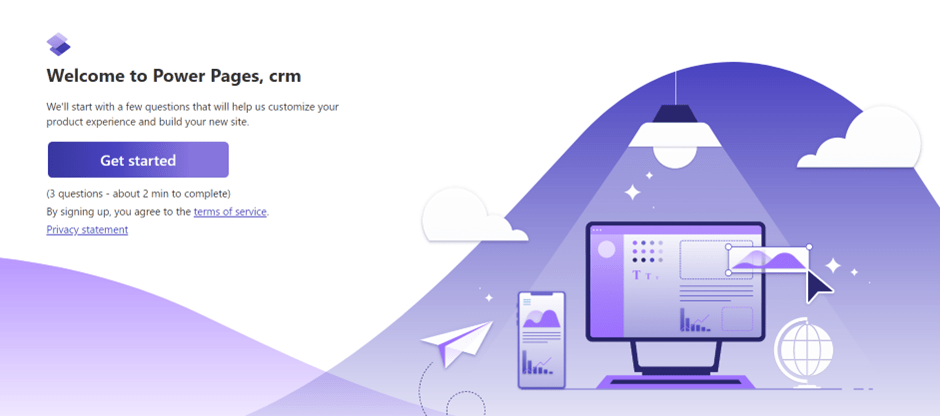
Create a trial account to check the Power Pages.

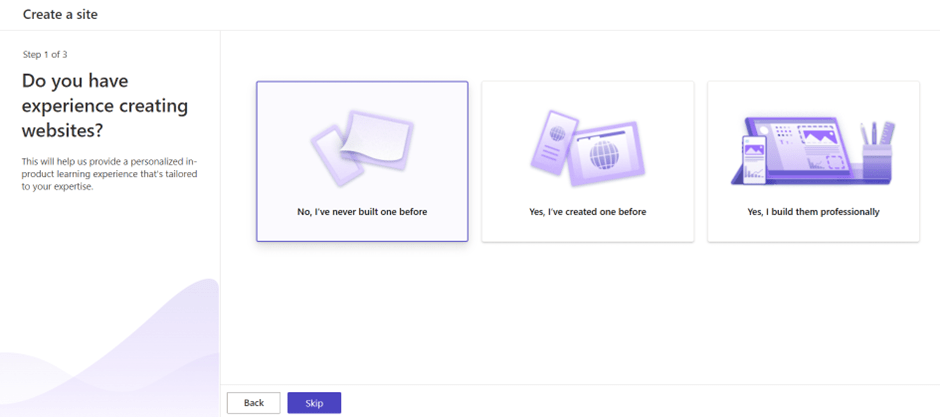
Next page will be as under then you can select as per your preference, or you can skip too. But I selected as I don’t have any experience to see what’s next for me 😊

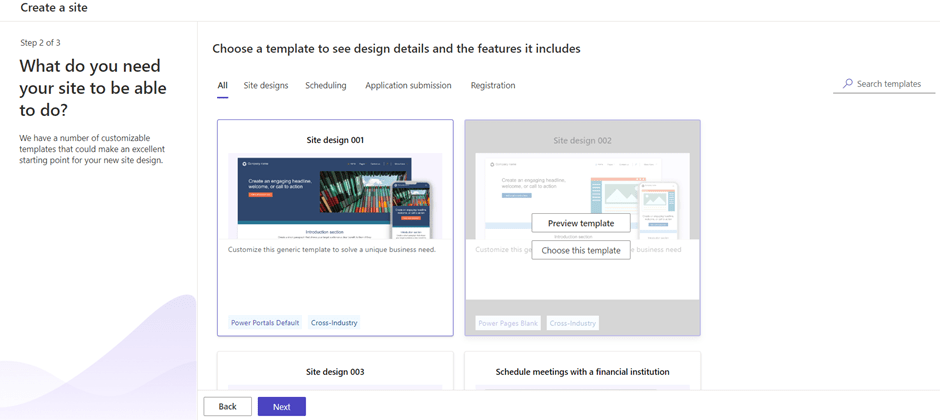
Next, I have been prompted with, to select a template for my site or else you can select Blank page too to start from scratch.

Let’s proceed to select an existing template as I am a layman. You can preview the template before selecting in Desktop and Mobile mode. If you want to proceed with the template, click on ‘Choose this template’.

After choosing the template it will prompt us to select site name and available web address as per below snapshot.

Once you click on ‘Done’ then it will display a design studio with tools to build my website. You can preview the site clicking on Preview button on right top.

Under Pages tab you can add and modify pages.

Under Styling tab, you can add and modify designs of the page with styling options.

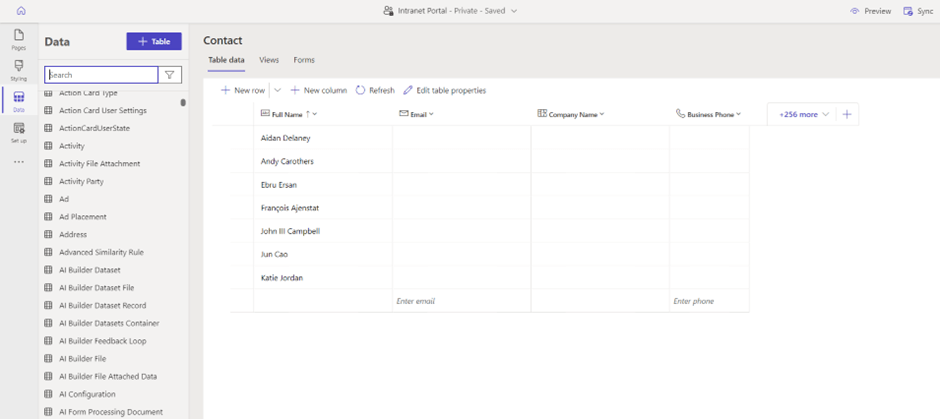
Under Data tab you can add your fresh new table, or you can use existing table from Dataverse.

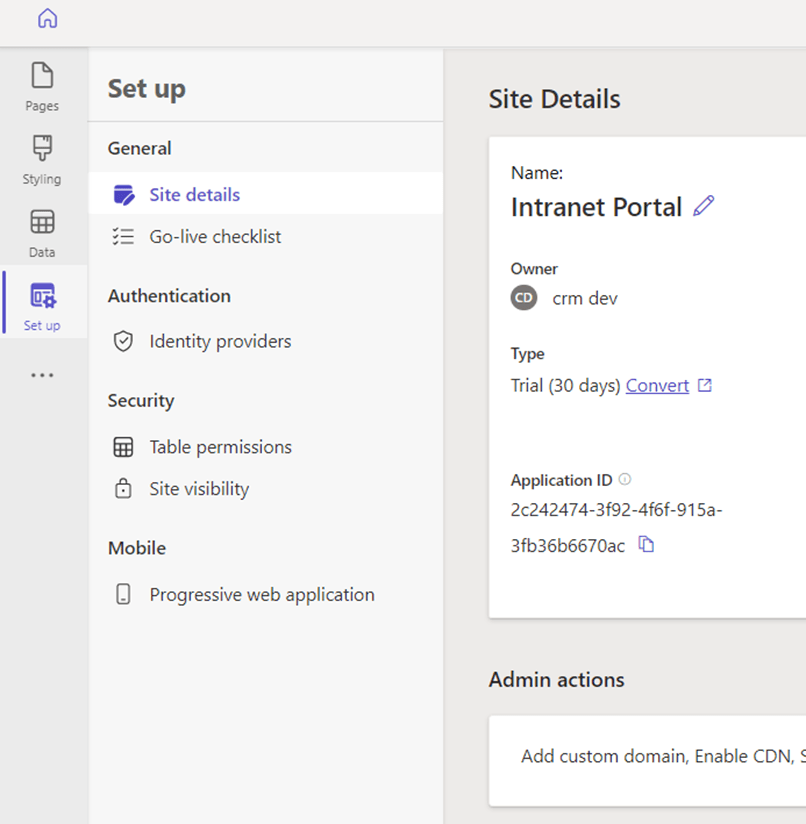
Under Setup tab you can add your security settings and permissions.

If you have no coding experience then you can use the tools available on design studio or else you can use ‘Edit Code’ on right top to write the code for your site and then sync it to reflect as under,

 After easy modifications and changes now, my site is ready as under,

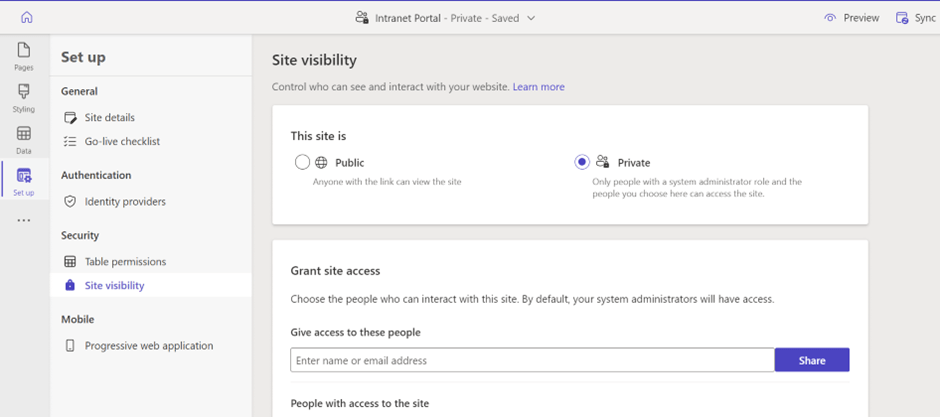
By Default site is Private which you can configure to make it public using set up tab as under,

SharePoint cloud actions in Power Automate for Desktop: Introducing cloud connectors in desktop flows

Power Automate offers a rich experience when it comes to connecting to other services. With a toolkit of over 780 connectors, cloud flows can interact with the most popular services that are accessible by API.

Using cloud connectors in RPA scenarios was a more complex and time-consuming process as, in many cases, it required loops between cloud and desktop flows. Now Microsoft made available all cloud connectors from within Power Automate desktop’s designer.

Please refer below link for more information –