Proactive voice engagements in Dynamics 365 Contact Center
(A shift from reactive support to proactive service, where AI agents initiate outbound voice calls to notify customers of critical updates, service disruptions, or personalized offers.)
Real-time User Journey: Anticipatory Service
This journey illustrates how the system prevents a customer from needing to call support by reaching out first:
Event Detection: An airline’s internal system flags that Flight 102 is delayed by four hours due to a technical issue.
Audience Segmentation: The Proactive Engagement Agent identifies all passengers on that flight who have not yet checked in or are currently in transit.
Autonomous Outreach: The AI agent initiates an outbound call to a passenger.
Natural Interaction: The passenger answers. Using HD Voices, the agent says: “Hi Alex, I’m calling from the airline. Your flight to Seattle has been delayed. I’ve already found a seat for you on the 6:00 PM departure. Would you like me to confirm that now?”
Interactive Resolution: The passenger agrees via voice. The agent updates the booking in the CRM and sends a new boarding pass via SMS.
Deflection Success: Because the airline reached out proactively, the passenger does not call the busy airport desk, reducing the “spike” in inbound volume for human agents.
Step-by-Step: How to Enable This Feature
Proactive voice requires configuration in both the Dynamics 365 Contact Center and Azure Communication Services.
Step 1: Configure Outbound Settings
In the Contact Center admin center, navigate to Channels > Voice. Ensure you have a validated outbound phone number and the appropriate telephony carrier settings.
Step 2: Define Proactive Triggers
Use Power Automate or Dataverse to set up a trigger. For example, “When a Flight Status changes to ‘Delayed’, trigger the Proactive Voice Flow.”
Step 3: Create the Voice Agent in Copilot Studio
Design the “Outbound Conversation” topic in Microsoft Copilot Studio. Specifically, select an HD Voice and draft the script using variables (like {CustomerName} and {FlightNumber}) for personalization.
Step 4: Enable “Proactive Outreach” in Settings
In the Bot settings, navigate to Proactive Engagements and toggle the feature to On. Map your Copilot bot to the outbound voice channel.
Step 5: Set Governance & Quiet Hours
Configure “Quiet Hours” (e.g., no proactive calls between 9:00 PM and 8:00 AM) and “Frequency Caps” to ensure customers aren’t overwhelmed by automated calls.
Step 6: Launch and Monitor
Publish the bot. Use the Agent Activity Feed to monitor the success rate and customer responses to these proactive calls in real-time.
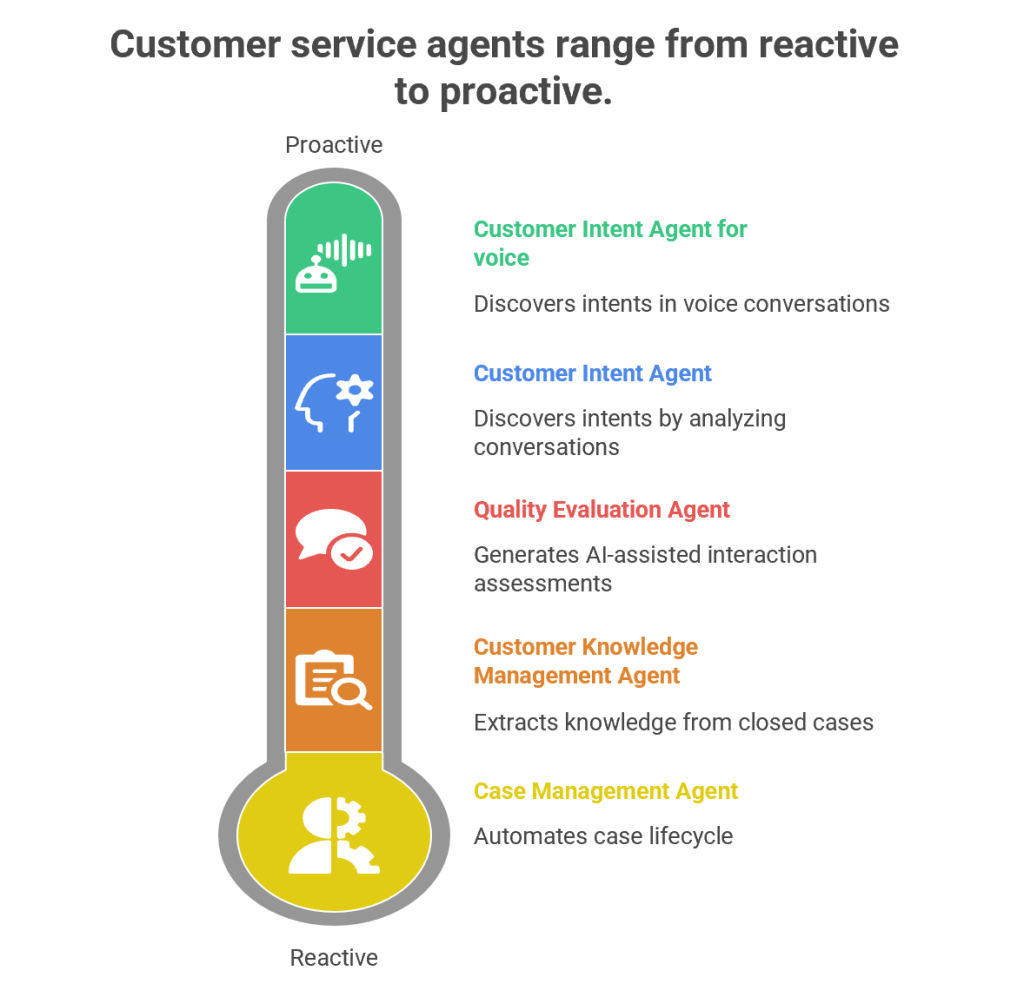
Customer service has evolved from being a reactive support function into a proactive, AI-driven engagement hub. Microsoft’s Dynamics 365 Customer Service Autonomous Agents represent the next leap in this journey. These agents are designed to autonomously handle repetitive tasks, discover customer intents, generate knowledge, and evaluate quality—all while freeing human agents to focus on complex, empathy-driven interactions.
1. Customer Intent Agent
Purpose
The Customer Intent Agent uses generative AI to autonomously discover customer intents by analyzing historical and ongoing cases, conversations, and interactions. Intents are essentially the “reason” behind a customer’s contact—such as resetting a password, checking an order status, or reporting a service outage.
How It Works
Data Mining: The agent scans past cases, chat transcripts, and emails to identify recurring themes.
Intent Discovery: It clusters similar issues into “intents” using natural language processing (NLP).
Knowledge Recommendations: Once an intent is identified, the agent suggests the most relevant knowledge articles to resolve the issue.
Continuous Learning: As new cases emerge, the agent adapts and refines its intent library.
Business Value
Reduces manual effort in categorizing cases.
Improves self-service portals by surfacing the right FAQs.
Enhances assisted service by guiding human agents toward faster resolutions.
Provides insights into emerging customer needs (e.g., a sudden spike in billing queries).
Example
Imagine a telecom company receiving thousands of queries daily. The Customer Intent Agent identifies that 40% of queries relate to “SIM card activation.” It then recommends a knowledge article and updates the chatbot to handle this intent autonomously, reducing call center load.
2. Customer Intent Agent for Voice
Purpose
While the standard Customer Intent Agent focuses on text-based interactions, the Voice variant is tailored for contact centers handling phone calls.
How It Works
Speech-to-Text Conversion: Converts live voice conversations into text.
Intent Recognition: Uses generative AI to detect customer intent in real time.
Guided Conversations: Suggests follow-up questions to agents, helping them steer the call effectively.
Real-Time Solutions: Provides tailored solutions during the call, reducing average handling time (AHT).
Business Value
Enhances voice-based customer service, which remains dominant in many industries.
Improves agent confidence by suggesting next-best actions during live calls.
Reduces call duration and increases first-call resolution (FCR).
Example
In a bank’s contact center, a customer calls saying, “I can’t access my account.” The agent dashboard instantly shows the intent as “Login Issue” and suggests asking: “Are you using the mobile app or web portal?” It then recommends a troubleshooting script, speeding up resolution.
3. Case Management Agent
Purpose
The Case Management Agent automates the entire case lifecycle—from creation to closure. Traditionally, service representatives spend significant time manually filling case details, updating statuses, and closing tickets. This agent eliminates that overhead.
How It Works
Case Creation: Automatically generates cases from emails, chats, or voice transcripts.
Case Updates: Populates fields like category, priority, and SLA deadlines.
Resolution & Closure: Suggests resolutions based on knowledge articles and closes cases once resolved.
Customization: Administrators can configure rules to tailor the agent’s behavior to organizational needs.
Business Value
Saves time for service representatives.
Ensures consistency in case handling.
Improves SLA compliance by automating escalations.
Reduces human error in case documentation.
Example
In an e-commerce company, when a customer emails “My package hasn’t arrived,” the Case Management Agent automatically creates a case, tags it as “Delivery Delay,” sets priority, and routes it to the logistics department. Once resolved, it closes the case and notifies the customer.
4. Customer Knowledge Management Agent
Purpose
Knowledge is the backbone of customer service. The Customer Knowledge Management Agent ensures that knowledge bases remain up-to-date, accurate, and compliant.
How It Works
Knowledge Extraction: Analyzes closed cases to identify gaps in existing knowledge articles.
Knowledge Creation: Drafts new articles using generative AI.
Compliance Checks: Ensures articles meet organizational and regulatory standards.
Real-Time Updates: Continuously refines knowledge bases as new cases emerge.
Business Value
Improves self-service by keeping FAQs relevant.
Enhances agent productivity by providing contextual knowledge suggestions.
Reduces repetitive queries by empowering customers with accurate information.
Ensures compliance in industries like healthcare and finance.
Example
A healthcare provider closes multiple cases related to “insurance claim submission.” The agent notices no existing article covers this process. It drafts a new knowledge article, reviews compliance, and publishes it—empowering both customers and agents.
5. Quality Evaluation Agent
Purpose
The Quality Evaluation Agent autonomously assesses customer interactions for quality and compliance. Supervisors traditionally spend hours manually reviewing calls and chats; this agent automates that process.
AI-Assisted Assessments: The agent evaluates cases and conversations against these criteria.
Feedback Loop: Provides insights into agent performance and customer satisfaction.
Continuous Improvement: Suggests training modules or process changes based on evaluation results.
Business Value
Ensures consistent service quality across agents.
Identifies training needs proactively.
Improves compliance with regulatory standards.
Enhances customer satisfaction through better service delivery.
Example
In a financial services firm, the agent evaluates 1,000 chat transcripts overnight. It flags 50 cases where agents failed to verify customer identity properly, alerting supervisors to potential compliance risks.
Synergy Between Agents
While each agent has a distinct role, their combined power transforms customer service:
Customer Feedback Survey Agent is now generally available
(An autonomous AI agent designed to proactively collect, analyze, and act upon customer feedback across multiple channels.)
Real-time User Journey
This journey demonstrates how the agent moves from simple data collection to proactive service recovery:
Interaction Trigger: A customer completes a complex support session regarding a billing dispute.
Autonomous Outreach: Instead of a generic email sent hours later, the Customer Feedback Survey Agent initiates a brief, conversational chat via the customer’s preferred channel (e.g., WhatsApp or SMS) immediately after the case is closed.
Adaptive Questioning: The agent doesn’t just ask “Rate us 1-5.” It acknowledges the context: “I see we just helped with a billing issue. On a scale of 1-5, how clear was the explanation provided?”
Sentiment Analysis: If the customer provides a low score (e.g., a “2”) and mentions they are still confused, the agent identifies the Negative Sentiment in real-time.
Proactive Recovery: The agent offers an immediate resolution: “I’m sorry to hear that. Would you like me to schedule a follow-up call with a senior billing specialist, or should I send a simplified breakdown to your email right now?”
Insights for Leadership: The agent summarizes the feedback and automatically tags it under “Policy Clarity Issues” in the supervisor’s dashboard, highlighting a systemic trend.
Step-by-Step: How to Enable This Feature
The Customer Feedback Survey Agent is managed within the Dynamics 365 Contact Center and Customer Service environments.
Step 1: Access the Agent Hub
Sign in to the Contact Center admin center or Customer Service admin center. Navigate to Operations > Agent Hub.
Step 2: Activate the Feedback Agent
Locate the Customer Feedback Survey Agent card. Toggle the status to Enabled.
Step 3: Connect to Customer Voice
Ensure your environment is linked to Microsoft Dynamics 365 Customer Voice. The agent uses these project templates as the foundation for its data structure.
Step 4: Configure “Agentic” Triggers
Define the conditions under which the agent should act (e.g., “Trigger survey immediately after Case Closure” or “Trigger after a 10-minute webchat session”).
Step 5: Define Recovery Workflows
In the agent settings, configure the Action Logic. Specify what the agent should do for specific scores (e.g., “If score < 3, offer a callback” or “If score = 5, ask for a public review”).
Step 6: Publish to Channels
Select the channels where the agent should operate (Voice, Chat, WhatsApp, or Email). Click Publish to start the autonomous feedback cycle.
Infographic: Static Surveys vs. Autonomous Feedback Agent
Revolutionizing customer support with autonomous case resolution
(The introduction of the Case Management Agent, an autonomous AI agent that manages the end-to-end lifecycle of a support ticket without human intervention.)
Real-time User Journey
This journey showcases how an autonomous agent handles a complex, multi-step service request:
Trigger: A customer sends an email regarding a faulty device. The system automatically creates a case in Dynamics 365.
Agent Assignment: Instead of a human queue, the Case Management Agent is assigned. It immediately reads the email, identifies the product, and checks the customer’s warranty status in the database.
Autonomous Investigation: The agent identifies that a diagnostic test is needed. It sends an automated (but personalized) reply to the customer with instructions.
Data Processing: The customer replies with the test results. The agent parses the data, compares it against the “Troubleshooting Knowledge Base,” and determines a replacement is required.
Action Execution: The agent interacts with the ERP system to initiate a replacement order and generates a return shipping label for the customer.
Resolution & Summary: The agent sends the final confirmation to the customer and closes the case. It then writes a concise summary of all actions taken in the timeline for human audit purposes.
Step-by-Step: How to Enable This Feature
The Case Management Agent is part of the new “Agentic” capabilities in Dynamics 365.
Step 1: Access the Agent Hub
Log in to the Customer Service admin center or Contact Center admin center. Navigate to Operations > Agent Hub.
Step 2: Activate the Case Management Agent
Find the Case Management Agent card. Toggle the status to Enabled.
Step 3: Define the “Knowledge Source”
Under the agent settings, point the agent to your high-quality data sources (SharePoint, Dataverse tables, or specific websites) so it knows how to resolve issues based on your company policy.
Step 4: Set Safety Guardrails
Configure the “Human-in-the-loop” settings. You can specify that the agent can resolve “Low” and “Medium” priority cases autonomously but must route “High” priority cases to a human.
Step 5: Configure Connection Actions
Use Power Automate connectors to allow the agent to perform actions in external systems (like SAP, Salesforce, or internal shipping tools) to complete the resolution.
Step 6: Monitor via Activity Feed
Ensure the AI Agent Activity Feed is added to your supervisor’s workspace so they can monitor the agent’s reasoning and step-by-step progress in real-time.
Infographic: Manual vs. Autonomous Case Resolution
Use custom multisession apps in Copilot service workspace
(The ability to embed and launch custom third-party or internal line-of-business applications directly within the tabbed, multisession environment of Dynamics 365).
Real-time User Journey
This journey illustrates how a “Tier 2” support agent uses custom apps to resolve a complex logistics issue without leaving their primary workspace:
Contextual Intake: An agent accepts a high-priority chat regarding a delayed shipment.
Copilot Insight: Copilot summarizes the case and notes that the package is held in a custom third-party warehouse system not native to Dynamics 365.
Seamless Launch: Instead of minimizing Dynamics and opening a browser, the agent clicks a custom tab labeled “Warehouse Manager” within their active session.
In-App Action: The Custom Multisession App opens in a new tab within the same window. The agent updates the shipping manifest and releases the hold.
Data Synchronization: Because the app is integrated into the workspace, the agent can easily copy-paste or link the confirmation ID back to the Dynamics 365 record.
Resolution: The agent closes the warehouse tab and the chat session simultaneously, keeping their workspace clean and focused for the next incoming request.
Step-by-Step: How to Enable This Feature
Administrators can configure these apps through the App Management settings:
Step 1: Admin Center Access
Sign in to the Customer Service admin center or Contact Center admin center.
Step 2: Navigate to App Profiles
Go to Agent Experience > Workspaces > Agent experience profiles.
Step 3: Edit the Profile
Select the profile used by your agents (e.g., “Customer Service Representative”) and click Edit.
Step 4: Add Application Tab Template
Navigate to the Application tab templates section. Click Add and select New Template.
Step 5: Define the Custom App
Set the Template Type to “Third-party website” or “Custom App.”
Enter the Target URL of your internal tool or third-party software.
Configure Parameters to ensure the app opens with the correct context (e.g., passing the Customer ID in the URL).
Step 6: Assign to Sidebar/Tab
Choose where the app should appear (e.g., as a default tab in every new session or as an option in the productivity pane). Save and Publish the profile.
Infographic: Single-Session vs. Custom Multisession Workspace
Feature
Single-Session/Standard Browser
Custom Multisession Workspace
App Switching
Manual (Alt+Tab between windows).
Native Tabs within the workspace.
Context Retention
Easy to lose track of which window belongs to which customer.
Session-Linked; apps stay tied to the specific customer record.

 GM Dynamics & Agentic AI Consulting