copilot-studio, Power Apps

Inside the New Power Apps: A Reimagined Developer Experience for the Agentic Era

This update introduces a completely new developer surface (located at vibe.powerapps.com) that combines “vibe coding” (high-speed, natural language development) with enterprise-grade scalability. It redefines app development by using a team of specialized AI agents to build full-stack applications.

Real-time User Journey: Multi-Agent App Creation

The new user journey shifts from “dragging and dropping” to “collaborative directing”:

  1. Vision Prompting: A maker describes a complex business problem in natural language: “I need an app for our field technicians to track equipment repairs, check inventory parts in real-time, and automatically notify customers via email.”
  2. Agent Collaboration: A team of agents springs into action:
    • The Researcher Agent: Outlines detailed user stories and functional requirements.
    • The Data Agent: Proposes and builds an optimized data model in Dataverse.
    • The UI/UX Agent: Drafts the modern, responsive interface including forms and galleries.
  3. Real-time Preview: Within minutes, the maker sees a full-stack, functional “draft” of the app.
  4. Human-in-the-Loop Refinement: The maker can give iterative feedback (e.g., “Make the status buttons color-coded”) and the agents update the code and logic immediately.
  5. Seamless Handoff: Once satisfied, the app is ready for deployment with built-in governance, security, and the Power Apps MCP Server already configured to interact with other agents.

Step-by-Step: How to Enable the New Power Apps

Note: This feature was launched at Ignite 2025 and is being rolled out to Managed Environments.

  • Step 1: Access the New Portal: Navigate to the new developer entry point at vibe.powerapps.com.
  • Step 2: Environment Readiness: Ensure your environment is a Managed Environment in the Power Platform Admin Center to support agentic capabilities.
  • Step 3: Enable Copilot & Agents: Under the environment settings, ensure the Generative AI and Copilot features are toggled to “On.”
  • Step 4: Use the MCP Server: To allow your apps to interact with agents (like M365 Copilot), enable the Power Apps Model Context Protocol (MCP) Server in the app settings. This allows agents to “read” your app’s screens and perform tasks like intelligent form filling.
  • Step 5: Governance Setup: In the Admin Center, configure the new Inventory and Usage reporting to monitor the agents and apps created in this new environment.

Infographic: Reimagining App Development

This update marks a shift from “Low-Code” to “Agentic-Code”:

PillarLegacy Power AppsThe New Power Apps (2026 Wave)
Development StyleManual drag-and-drop components.Vibe Coding (Natural language + Agents).
BrainpowerSingle maker expertise.Team of Specialized Agents (Data, UI, Research).
ConnectivityManual connector configuration.MCP Server (Apps provide “skills” to agents).
SpeedHours or days to MVP.Minutes from prompt to full-stack app.
GovernanceManual app auditing.AI-Powered Governance with real-time risk assessment.

References

contact-centre, Customer-service

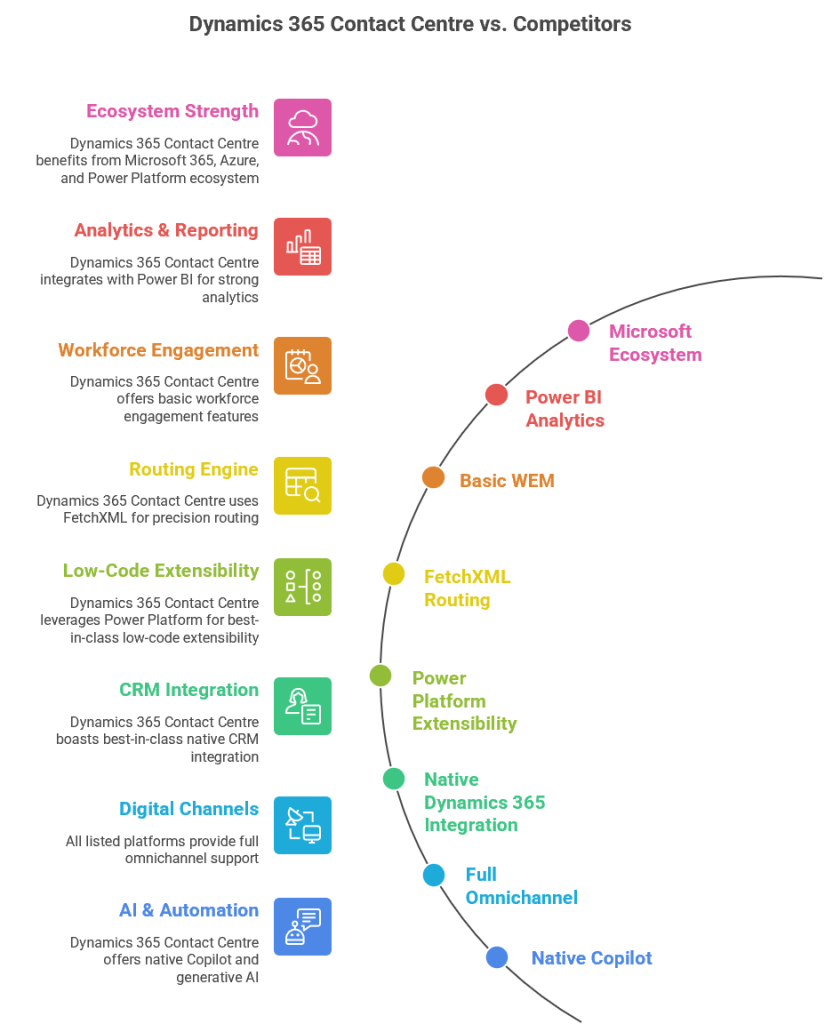
Dynamics 365 Contact Centre vs Other CcaaS Platform

Dynamics 365 Contact Centre is Microsoft’s AI‑first, cloud‑native CCaaS platform built on Azure Communication Services and deeply integrated with Dynamics 365, Power Platform, and Microsoft 365.
Compared to other CCaaS leaders, Microsoft’s strengths lie in AI, CRM context, low‑code extensibility, and ecosystem integration, while competitors often lead in telephony maturity, WEM, and global carrier options.

Dynamics 365 Contact Centre

Strengths

  • Deep Microsoft ecosystem integration (Teams, M365, Power Platform, Dynamics 365)
  • AI‑first design with Copilot and CRM‑aware automation
  • Low‑code extensibility via Power Automate and Dataverse
  • Unified agent desktop with CRM context
  • FetchXML‑based routing for compliance‑driven orgs

Weaknesses

  • Workforce engagement management still maturing
  • Telephony ecosystem not as broad as Genesys/NICE
  • Best suited for Microsoft‑aligned enterprises

Amazon Connect

Strengths

  • Highly scalable, developer‑friendly
  • Strong AWS AI/ML integration
  • Pay‑as‑you‑go pricing

Weaknesses

  • Requires heavy custom development
  • Weak CRM story
  • Limited out‑of‑the‑box WEM

Genesys Cloud CX

Strengths

  • Very mature routing, WEM, and analytics
  • Strong global telephony
  • Broad enterprise adoption

Weaknesses

  • Higher cost
  • Less native AI compared to Microsoft
  • Complex configuration

NICE CXone

Strengths

  • Best‑in‑class analytics and WEM
  • Strong compliance and global reach
  • Mature voice and digital channels

Weaknesses

  • Complex licensing
  • Less modern architecture than Microsoft/AWS
  • Limited low‑code extensibility

Cisco Webex Contact Center

Strengths

  • Strong telephony and network reliability
  • Good for Cisco‑centric enterprises
  • Solid omnichannel

Weaknesses

  • AI and CRM context weaker than Microsoft
  • Less flexible than AWS/Genesys

Best‑Fit Recommendations

Choose Dynamics 365 Contact Centre if:

  • You are a Microsoft‑centric enterprise
  • You want AI‑first customer service
  • You need CRM‑aware automation
  • You want low‑code extensibility
  • You want a unified Microsoft ecosystem (Teams + Dynamics + Power Platform)

Choose Amazon Connect if:

  • You have strong AWS engineering teams
  • You want a highly customizable CCaaS
  • You prefer pay‑as‑you‑go pricing

Choose Genesys Cloud CX if:

  • You need advanced routing and WEM
  • You run a large, global contact centre

Choose NICE CXone if:

  • Analytics and compliance are top priorities
  • You need the strongest WEM suite

Choose Cisco Webex CC if:

  • You are already invested in Cisco telephony
  • You want a stable, network‑centric CCaaS
AI Foundry, contact-centre, copilot-studio, Customer-service, Power Apps

Use custom multisession apps in Copilot service workspace in Dynamics 365

Use custom multisession apps in Copilot service workspace

(The ability to embed and launch custom third-party or internal line-of-business applications directly within the tabbed, multisession environment of Dynamics 365).

Real-time User Journey

This journey illustrates how a “Tier 2” support agent uses custom apps to resolve a complex logistics issue without leaving their primary workspace:

  1. Contextual Intake: An agent accepts a high-priority chat regarding a delayed shipment.
  2. Copilot Insight: Copilot summarizes the case and notes that the package is held in a custom third-party warehouse system not native to Dynamics 365.
  3. Seamless Launch: Instead of minimizing Dynamics and opening a browser, the agent clicks a custom tab labeled “Warehouse Manager” within their active session.
  4. In-App Action: The Custom Multisession App opens in a new tab within the same window. The agent updates the shipping manifest and releases the hold.
  5. Data Synchronization: Because the app is integrated into the workspace, the agent can easily copy-paste or link the confirmation ID back to the Dynamics 365 record.
  6. Resolution: The agent closes the warehouse tab and the chat session simultaneously, keeping their workspace clean and focused for the next incoming request.

Step-by-Step: How to Enable This Feature

Administrators can configure these apps through the App Management settings:

  • Step 1: Admin Center Access

Sign in to the Customer Service admin center or Contact Center admin center.

  • Step 2: Navigate to App Profiles

Go to Agent Experience > Workspaces > Agent experience profiles.

  • Step 3: Edit the Profile

Select the profile used by your agents (e.g., “Customer Service Representative”) and click Edit.

  • Step 4: Add Application Tab Template

Navigate to the Application tab templates section. Click Add and select New Template.

  • Step 5: Define the Custom App
    • Set the Template Type to “Third-party website” or “Custom App.”
    • Enter the Target URL of your internal tool or third-party software.
    • Configure Parameters to ensure the app opens with the correct context (e.g., passing the Customer ID in the URL).
  • Step 6: Assign to Sidebar/Tab

Choose where the app should appear (e.g., as a default tab in every new session or as an option in the productivity pane). Save and Publish the profile.

Infographic: Single-Session vs. Custom Multisession Workspace

FeatureSingle-Session/Standard BrowserCustom Multisession Workspace
App SwitchingManual (Alt+Tab between windows).Native Tabs within the workspace.
Context RetentionEasy to lose track of which window belongs to which customer.Session-Linked; apps stay tied to the specific customer record.
Workflow SpeedSlower due to window management.Instant Access to internal/external tools.
SecurityHarder to govern external browser usage.Governed Access through the Admin Center.
FocusHigh risk of distraction/clutter.Unified Interface for all service tools.

References

contact-centre, Customer-service

Microsoft named a Leader in the 2025 Gartner® Magic Quadrant™ for the CRM Customer Engagement Center

Microsoft named a Leader in the 2025 Gartner® Magic Quadrant™ for the CRM Customer Engagement Center

(Recognition of Microsoft’s vision and execution in the “Agentic” Service era, specifically focusing on Dynamics 365 Contact Center and Customer Service).

Real-time User Journey: The Modern Agentic Service

This recognition was driven by how Microsoft integrates AI into the service journey. Here is a typical user journey enabled by the “Leader” category features:

  1. Intelligent Intake: A customer initiates a voice call. The Conversational IVR uses natural language processing to understand the intent (e.g., “I need to dispute a double charge on my last bill”).
  2. Contextual Routing: Instead of a generic queue, Unified Routing matches the customer to a specialized “Billing Dispute” agent.
  3. The Copilot Sidecar: As the agent accepts the call, Copilot automatically pops up a summary of the customer’s recent interactions and a drafted resolution based on the disputed transaction found in the ERP.
  4. Autonomous Support: While the human agent speaks with the customer, a Case Management Agent works in the background to automatically update the case records and trigger the refund workflow in the finance system.
  5. Quality Oversight: After the call, the Quality Evaluation Agent reviews the interaction for empathy and accuracy, providing an instant score for the supervisor’s dashboard.

Step-by-Step: How to Enable the “Leader” Capabilities

To utilize the specific features highlighted in the Gartner report (the “Agentic” suite), follow these steps:

  • Step 1: Consolidate to a Single Platform

Ensure you are using the Dynamics 365 Contact Center (standalone) or the Customer Service Enterprise license. This recognition is based on the unified nature of the Microsoft cloud.

  • Step 2: Enable Copilot for Service

Navigate to the Customer Service admin center > Agent Experience > Productivity. Toggle on “Copilot Help Pane” and “Summaries” to give agents real-time AI assistance.

  • Step 3: Activate Autonomous Agents

Visit the Agent Hub (found under Operations). Here, you can toggle on the Case Management Agent and the Knowledge Management Agent to begin automating lifecycle tasks.

  • Step 4: Set Up Unified Routing

Go to Customer Support > Routing. Configure “Intents” so the AI can categorize incoming requests and route them to the most qualified agent (human or digital).

  • Step 5: Implement Generative AI Knowledge

Under Knowledge, point Copilot to your SharePoint or website. This allows the system to provide “Generative Answers,” which was a key differentiator in the Gartner evaluation.

  • Step 6: Monitor via the Agent Activity Feed

Add the Agent Activity Feed to your supervisor workspace to maintain “human-in-the-loop” oversight of your autonomous agents.

Infographic: Why Microsoft is a Leader

Strategic PillarKey CapabilityBusiness Value
Agentic AICase & Quality Evaluation Agents.100% coverage of QA and lifecycle automation.
Unified DataDataverse & Microsoft Fabric integration.Eliminates data silos for a 360-degree customer view.
OmnichannelVoice, SMS, WhatsApp, and Social.Meet customers on any channel with consistent AI logic.
CollaborationNative Microsoft Teams integration.Swarm complex issues with back-office experts instantly.
TrustHITRUST and FedRAMP High certification.High-security standards for Healthcare and Government.

References

AI Foundry, contact-centre, copilot-studio, Customer-service

Elevate support excellence with Quality Evaluation Agent in Dynamics 365

Based on the Microsoft Dynamics 365 blog post from October 30, 2025, here is the breakdown of the Quality Evaluation Agent.

Elevate support excellence with Quality Evaluation Agent

(An autonomous AI agent designed to automate the Quality Assurance (QA) process by evaluating 100% of customer interactions against defined business rubrics).

Real-time User Journey: From Manual Sampling to Total Oversight

This journey highlights how a Quality Manager shifts from “hunting for errors” to “strategic coaching”:

  1. Continuous Analysis: Throughout the day, thousands of calls and chats occur. In the background, the Quality Evaluation Agent automatically analyzes every single transcript.
  2. Rubric Application: The agent applies the company’s specific “Excellence Rubric,” checking for compliance, empathy, accurate product knowledge, and adherence to greeting protocols.
  3. Anomaly Detection: The agent identifies a specific agent who is consistently providing high-quality service but struggling with a new “return policy” detail. It also flags a wider trend where customer sentiment drops whenever “shipping delays” are mentioned.
  4. Proactive Reporting: Instead of the manager listening to random tapes, they open their Insights Dashboard. They see a prioritized list of interactions that require human attention (e.g., high-risk calls or those with low AI-generated quality scores).
  5. Targeted Coaching: The manager clicks on a flagged call. The agent provides a Reasoning Summary: “Score: 65/100. Agent missed the mandatory privacy disclosure at 02:14.”
  6. Loop Closure: The manager uses these precise insights to provide a 5-minute targeted coaching session. The agent continues to monitor the agent’s next calls to track improvement in real-time.

Step-by-Step: How to Enable This Feature

The Quality Evaluation Agent is part of the “Agentic” suite in Dynamics 365 Customer Service.

  • Step 1: Access the Agent Hub

Sign in to the Customer Service admin center. Navigate to Operations > Agent Hub.

  • Step 2: Activate the Quality Evaluation Agent

Locate the Quality Evaluation Agent card and select Manage. Toggle the status to Enabled.

  • Step 3: Define Your Evaluation Rubric

Upload or define your scoring criteria. You can set specific parameters such as:

  • Compliance: Did the agent verify the customer’s identity?
  • Soft Skills: Was the tone professional and empathetic?
  • Process: Did the agent follow the standard troubleshooting steps?
  • Step 4: Configure Sampling (Optional)

While the agent can evaluate 100% of calls, you can configure it to prioritize specific high-value queues or new trainees for more frequent reporting.

  • Step 5: Connect to Power BI Insights

Enable the Quality Insights Dashboard. This will pull the agent’s evaluations into visual reports showing trends across teams, time periods, and specific product categories.

  • Step 6: Set Up Supervisor Alerts

Configure “Critical Failure” alerts. For example, if a “Compliance Score” drops below 50 on a single call, the supervisor receives an immediate notification to review the interaction.

Infographic: Traditional QA vs. Quality Evaluation Agent

FeatureTraditional Manual QAQuality Evaluation Agent
Coverage1–2% of interactions (Randomized).100% of interactions (Total).
SpeedRetrospective (Days or weeks later).Near Real-time (Minutes after call).
ObjectivitySubject to human bias and fatigue.Consistent & Unbiased application of rules.
InsightsAnecdotal/Small sample size.Data-driven trends across the whole org.
Supervisor RoleListening to tapes (Manual labor).Coaching & Strategy (High value).

References