AI Foundry, contact-centre, copilot-studio, Customer-service

Try rich messaging for live chat and WhatsApp in Contact Center in Dynamics 365

Try rich messaging for live chat and WhatsApp in Contact Center (Enhancing digital customer service with interactive elements like forms, carousels, and suggested replies).

Real-time User Journey: Interactive Troubleshooting

This journey demonstrates how rich messaging replaces tedious typing with intuitive visual interactions:

  1. Customer Initiation: A customer messages a retail brand via WhatsApp to report a missing part in a furniture delivery.
  2. Suggested Replies: The AI agent instantly provides Suggested Replies (e.g., “Missing Part,” “Damaged Item,” “Wrong Item”). The customer taps “Missing Part” instead of typing it out.
  3. Interactive Form: The agent sends a Rich Form directly in the chat. The customer uses a dropdown to select the furniture model and a date picker to specify the original delivery date.
  4. Visual Confirmation (Carousel): The system displays a Carousel of parts for that specific model. The customer swipes through high-quality images and taps the exact screw or bracket that is missing.
  5. Agent Handoff: If the customer needs a human, the conversation is routed to a live agent. The agent sees the completed form and the selected part in the Agent Workspace, allowing them to finalize the replacement order without asking repetitive questions.
  6. Confirmation: The agent sends an Adaptive Card showing the new delivery tracking number, which the customer can track with one tap.

Step-by-Step: How to Enable This Feature

Administrators can configure rich messaging templates that work across multiple digital channels:

  • Step 1: Admin Center Access Sign in to the Customer Service admin center or Contact Center admin center.
  • Step 2: Navigate to Rich Messages Go to Workforce Management (or Customer Support) > Rich messages.
  • Step 3: Create a Message Template Select New and choose the message type:
    • Forms: For structured data collection (text, numbers, dates).
    • Suggested Replies: For quick decision buttons.
    • Custom JSON: For advanced Adaptive Cards.
  • Step 4: Design for Channels Use the designer to build your message. The system is channel-aware, meaning you can design one template that automatically adapts its appearance for the Live Chat widget versus WhatsApp.
  • Step 5: Preview and Publish Use the Preview Pane to see how the message will render on different devices. Once satisfied, select Publish to make the template available to agents and bots.
  • Step 6: Integration with Copilot Studio In Microsoft Copilot Studio, use the Adaptive Card node to call these published templates, allowing your AI agents to send rich interactive content autonomously.

Infographic: Plain Text vs. Rich Messaging

FeatureTraditional Text MessagingNew Rich Messaging
User InputManual typing (high friction).One-tap buttons & dropdowns.
Data CollectionOpen-ended text (requires parsing).Structured Forms (validated data).
VisualsBasic attachments/links.Interactive Carousels & Cards.
AccuracyProne to typos and ambiguity.Precision through predefined choices.
Resolution TimeSlower (back-and-forth questions).Faster (all data gathered in one card).

References

contact-centre, copilot-studio, Customer-service, Power Apps

From systems of record to systems of action: Dynamics 365, agentic business applications for the frontier

From systems of record to systems of action: Dynamics 365, agentic business applications for the frontier

(A strategic shift where AI agents move beyond simple data storage to autonomously driving decisions and business outcomes).

Real-time User Journey: The Quality Evaluation Agent

The post highlights several agents; one of the most prominent is the Quality Evaluation Agent (GA October 24, 2025). Here is a journey for a Customer Service Supervisor:

  1. Massive Data Influx: A contact center handles 10,000 interactions a day. Historically, supervisors could only manually review 1-2% of these calls.
  2. Autonomous Evaluation: The Quality Evaluation Agent works in the background, automatically reviewing 100% of conversations (both human and AI-led) against company rubrics.
  3. Anomaly Detection: The agent flags a sudden trend where customers are unhappy with a specific refund policy.
  4. Real-time Alert: The Supervisor receives a “Service Quality Pulse” notification on their dashboard, highlighting the specific anomaly and providing a summary of the sentiment drop.
  5. Data-Driven Action: The Supervisor opens the Quality Dashboard to see AI-generated scores for empathy, accuracy, and compliance.
  6. Resolution: Based on these 100% accurate insights, the Supervisor immediately updates the agent training materials and adjusts the refund business logic, resolving a systemic issue in hours rather than weeks.

Step-by-Step: How to Enable These Features

To move your organization toward “Systems of Action,” follow these steps to activate the new agents:

  • Step 1: Dataverse Consolidation

Ensure your data is unified in Microsoft Dataverse. Agents require a clean, structured data foundation to “act” across silos.

  • Step 2: Access the Agent Hub

Log in to the Dynamics 365 Admin Center. Navigate to the Agent Hub, which serves as the control center for all agentic applications.

  • Step 3: Activate Specific Agents
    • For Sales: Enable the Sales Close Agent (Public Preview Oct 25) to prioritize high-value deals.
    • For Service: Enable the Quality Evaluation Agent (GA Oct 24) to monitor conversation quality.
    • For Field Service: Enable the Scheduling Operations Agent to keep schedules agile.
  • Step 4: Configure Governance and Guardrails

Use Microsoft Copilot Studio to define the business logic and “Safety Instructions” for each agent, ensuring they operate within your organization’s ethical and legal boundaries.

  • Step 5: Allocate Copilot Credits

Starting late November 2025, ensure your Dynamics 365 Premium licenses are assigned to users to receive the 1,000 monthly Copilot Credits required to run these autonomous processes.

  • Step 6: Monitor Performance

Use the newly launched Agent Benchmarks (like the Sales Research Bench) to measure the accuracy and impact of your agents against industry standards.

Infographic: The Agentic Evolution

DimensionSystem of Record (Old)System of Action (Agentic)
Primary GoalStoring and retrieving data.Driving outcomes and decisions.
Human EffortHigh (Searching, entering, analyzing).Low (Supervising and directing).
SpeedReactive (Human must initiate).Proactive (AI acts on events).
VisibilitySiloed by department.Unified (Connected via Dataverse).
User InterfaceForms and Dashboards.Almost Invisible (AI works in background).

References

AI Foundry, contact-centre, copilot-studio, Customer Experience, Customer-service, Power Apps

Microsoft Business Applications Launch Event: 2025 Release Wave 2 Innovations

Based on the Microsoft Business Applications Launch Event blog post from October 9, 2025, here is the breakdown of the major AI innovations announced for the 2025 Release Wave 2.

Microsoft Business Applications Launch Event: 2025 Release Wave 2 Innovations

(Focusing on the transition from AI assistants to Agentic AI across Dynamics 365, Power Platform, and Copilot Studio).

Real-time User Journey: The Agentic Workflow

This journey showcases how new autonomous agents collaborate across the platform to resolve a complex business challenge:

  1. Detection: A Service Operations Agent detects a spike in support tickets related to a specific product defect.
  2. Collaboration: The Service Agent automatically alerts a Supply Chain Agent, providing a summary of the affected batches.
  3. Autonomous Action: The Supply Chain Agent checks inventory levels and proactively contacts the supplier to pause orders and request replacements.
  4. Sales Insight: Meanwhile, Dynamics 365 Sales agents receive a notification from Copilot informing them of the delay for their open deals, along with AI-generated talking points to manage customer expectations.
  5. Supervisor Oversight: The Operations Manager monitors this entire “Agent-to-Agent” interaction through the Agent Activity Feed, ensuring the logic remains within company policy before the agents finalize the supplier communications.

Step-by-Step: How to Enable These Innovations

Because this event covers a “Wave” of features, enabling them follows the standard Release Wave process:

  • Step 1: Access the Release Planner

Navigate to the Microsoft Release Planner to identify which specific agents (e.g., Sales, Finance, or Service) are available for your region and environment type.

  • Step 2: Environment Validation

Log in to the Power Platform Admin Center. Create a Sandbox environment to test new features without impacting production.

  • Step 3: Opt-in to 2025 Wave 2

Go to Environments > [Your Env] > Settings > Updates. Click “Update now” under the 2025 Release Wave 2 header to enable early access features.

  • Step 4: Configure Copilot Studio Agents

Open Microsoft Copilot Studio. Use the new Agentic Templates to build autonomous agents that can trigger Power Automate flows and query Dataverse without manual intervention.

  • Step 5: Enable the Agent Hub

In the Customer Service/Contact Center Admin Center, navigate to the Agent Hub to toggle on specific autonomous agents like the Knowledge Management Agent or Case Management Agent.

  • Step 6: Deploy to Users

Update your Agent Experience Profiles to ensure the new Copilot sidecar features (like real-time web search and autonomous summaries) are visible to your staff.

Infographic: The Shift to Agentic AI

FeatureCopilot as Assistant (Current)AI Agents (Wave 2)
InitiativeReactive (Wait for user prompt).Proactive (Starts work based on events).
LogicFollows specific instructions.Reasoning-based (Solves multi-step problems).
IntegrationLimited to the current app.Cross-platform (Talks to other agents/apps).
Human RoleDoing the work with AI help.Supervising the AI doing the work.
Scale1:1 interaction.1:Many (Agents handle thousands of tasks).

References

architecture, contact-centre, copilot-studio, Customer Experience, Customer-service, Power Apps

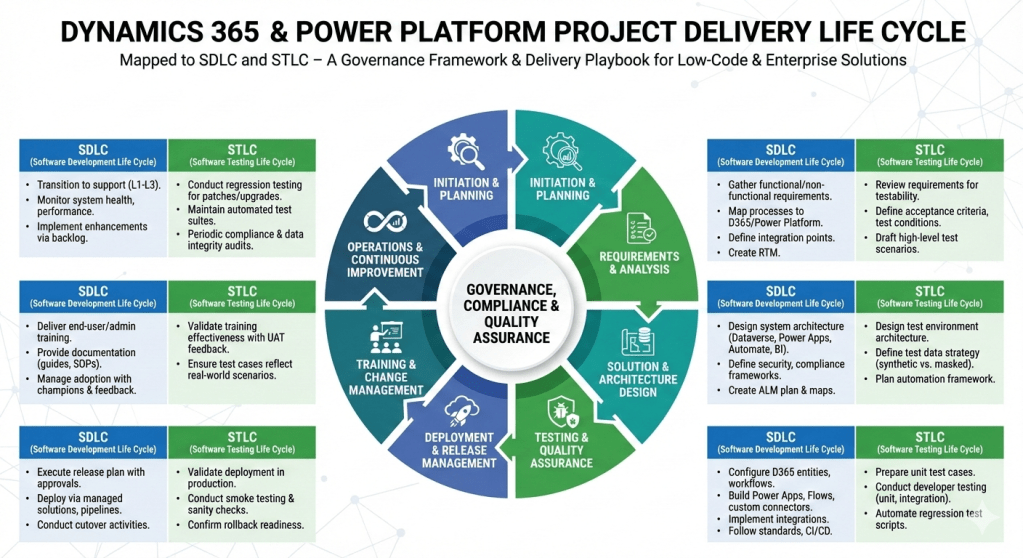
Step‑by‑step project delivery life cycle for Dynamics 365 & Power Platform projects

Here’s a step‑by‑step project delivery life cycle for Dynamics 365 & Power Platform projects, mapped to both SDLC (Software Development Life Cycle) and STLC (Software Testing Life Cycle). I’ve structured it so you can use it as a governance framework or a delivery playbook.

Dynamics 365 & Power Platform Project Delivery Life Cycle

1. Initiation & Planning

  • SDLC:
    • Define business objectives, scope, and success criteria.
    • Identify stakeholders, governance model, and compliance requirements.
    • Conduct feasibility study and ROI analysis.
  • STLC:
    • Define test strategy aligned with business goals.
    • Identify quality metrics, compliance standards, and risk areas.

2. Requirements & Analysis

  • SDLC:
    • Gather functional and non‑functional requirements (workshops, interviews, user stories).
    • Map business processes to Dynamics 365 modules and Power Platform capabilities.
    • Define integration points (ERP, CRM, CTI, external APIs).
    • Create requirement traceability matrix.
  • STLC:
    • Review requirements for testability.
    • Define acceptance criteria and test conditions.
    • Draft high‑level test scenarios.

3. Solution & Architecture Design

  • SDLC:
    • Design system architecture (Dataverse, Power Apps, Power Automate, Power BI, Dynamics 365 modules).
    • Define security, compliance, and governance frameworks.
    • Create ALM (Application Lifecycle Management) plan with environments (Dev, Test, UAT, Prod).
    • Prepare architecture maps and integration diagrams.
  • STLC:
    • Design test environment architecture.
    • Define test data strategy (synthetic vs. masked production data).
    • Plan automation framework (e.g., EasyRepro, Selenium, Power Automate test flows).

4. Development & Configuration

  • SDLC:
    • Configure Dynamics 365 entities, forms, workflows, and business rules.
    • Build Power Apps (Canvas/Model‑Driven), Power Automate flows, and custom connectors.
    • Implement integrations (Azure Functions, Logic Apps, APIs).
    • Follow coding standards, version control (GitHub/Azure DevOps), and CI/CD pipelines.
  • STLC:
    • Prepare unit test cases.
    • Conduct developer testing (unit, integration).
    • Automate regression test scripts.

5. Testing & Quality Assurance

  • SDLC:
    • Conduct system testing, UAT, performance testing, and security validation.
    • Validate integrations and data migration.
  • STLC:
    • Test Planning: Finalize test plan, entry/exit criteria.
    • Test Design: Create detailed test cases, test scripts, and data sets.
    • Test Execution: Run functional, regression, performance, and security tests.
    • Defect Management: Log, track, and resolve defects in Azure DevOps/Jira.
    • Test Closure: Document results, lessons learned, and sign‑off.

6. Deployment & Release Management

  • SDLC:
    • Execute release plan with governance approvals.
    • Deploy via managed solutions, pipelines, or release automation.
    • Conduct cutover activities (data migration, user provisioning, environment setup).
  • STLC:
    • Validate deployment in production.
    • Conduct smoke testing and sanity checks.
    • Confirm rollback strategy readiness.

7. Training & Change Management

  • SDLC:
    • Deliver end‑user training, admin training, and governance workshops.
    • Provide documentation (user guides, SOPs, governance playbooks).
    • Manage adoption with change champions and feedback loops.
  • STLC:
    • Validate training effectiveness with UAT feedback.
    • Ensure test cases reflect real‑world scenarios.

8. Operations & Continuous Improvement

  • SDLC:
    • Transition to support (L1, L2, L3).
    • Monitor system health, performance, and compliance.
    • Implement enhancements via backlog grooming.
  • STLC:
    • Conduct regression testing for patches and upgrades.
    • Maintain automated test suites for continuous validation.
    • Periodic audits for compliance and data integrity.

This framework ensures governance, compliance, and quality assurance are embedded throughout delivery. It’s especially powerful for Dynamics 365 & Power Platform projects where configuration, low‑code development, and integrations coexist with enterprise‑grade testing.

AI Foundry, architecture, copilot-studio

What’s New in Copilot Studio: September 2025 – Expanding Reach, Automation, and Analytics

What’s New in Copilot Studio: September 2025 – Expanding Reach, Automation, and Analytics

The September updates focused on three core areas: building richer agent experiences (specifically via Computer Use and WhatsApp), advanced developer tools like Code Interpreter, and deeper ROI/Analytics for measuring business impact.

Real-time User Journey: Computer Use (Public Preview)

The most innovative journey introduced is the ability for an agent to interact with UIs like a human:

  1. Scenario Discovery: A user needs to enter data into an old legacy desktop application that doesn’t have an API.
  2. Instruction: The user tells the agent, “Open the legacy ERP, look up invoice #123, and copy the total into this Excel sheet.”
  3. Vision & Reasoning: The agent uses its “vision” to see the screen and its “reasoning” to identify buttons and text fields.
  4. Execution: On a hosted Windows 365 browser or local device, the agent moves the virtual mouse, clicks, and types to complete the task.
  5. Completion: The agent confirms the data has been moved and provides a screenshot or log of the completed action.

Step-by-Step: How to Enable WhatsApp (General Availability)

With WhatsApp integration now GA, you can deploy agents to customers globally:

  • Step 1: Prerequisites: Ensure you have a Meta Business Account and a verified phone number for WhatsApp.
  • Step 2: Access Channels: In Copilot Studio, open your agent and go to the Channels tab.
  • Step 3: Select WhatsApp: Choose WhatsApp from the list of available channels.
  • Step 4: Connect to Meta: Follow the guided wizard to link your Copilot Studio agent to your Meta Business Manager.
  • Step 5: Configure Interactions: Set up how the agent should handle attachments (images/files) and authentication (via phone number).
  • Step 6: Go Live: Once connected, your agent is accessible to anyone messaging that verified WhatsApp number.

Infographic: Scaling and Measuring AI Impact

The September update introduced a suite of “Enterprise-Ready” tools to manage agents at scale:

CapabilityWhat it DoesBusiness Value
Code Interpreter (GA)Executes Python code directly within agents.Solves complex math, data visualizations, and CRUD operations on Dataverse.
ROI Analysis (GA)Tracks savings in time or money per agent run.Provides real-time data to justify AI investment and prioritize projects.
File Groups (GA)Organizes up to 12,000 files into 25 groups.Improves knowledge retrieval accuracy and reduces “context chaos.”
Agents Client SDKEmbeds agents in native Android, iOS, or Windows apps.Keeps users in their flow of work without switching to Teams or Web.

References