Based on the Microsoft Business Applications Launch Event blog post from October 9, 2025, here is the breakdown of the major AI innovations announced for the 2025 Release Wave 2.
Microsoft Business Applications Launch Event: 2025 Release Wave 2 Innovations
(Focusing on the transition from AI assistants to Agentic AI across Dynamics 365, Power Platform, and Copilot Studio).
Real-time User Journey: The Agentic Workflow
This journey showcases how new autonomous agents collaborate across the platform to resolve a complex business challenge:
Detection: A Service Operations Agent detects a spike in support tickets related to a specific product defect.
Collaboration: The Service Agent automatically alerts a Supply Chain Agent, providing a summary of the affected batches.
Autonomous Action: The Supply Chain Agent checks inventory levels and proactively contacts the supplier to pause orders and request replacements.
Sales Insight: Meanwhile, Dynamics 365 Sales agents receive a notification from Copilot informing them of the delay for their open deals, along with AI-generated talking points to manage customer expectations.
Supervisor Oversight: The Operations Manager monitors this entire “Agent-to-Agent” interaction through the Agent Activity Feed, ensuring the logic remains within company policy before the agents finalize the supplier communications.
Step-by-Step: How to Enable These Innovations
Because this event covers a “Wave” of features, enabling them follows the standard Release Wave process:
Step 1: Access the Release Planner
Navigate to the Microsoft Release Planner to identify which specific agents (e.g., Sales, Finance, or Service) are available for your region and environment type.
Step 2: Environment Validation
Log in to the Power Platform Admin Center. Create a Sandbox environment to test new features without impacting production.
Step 3: Opt-in to 2025 Wave 2
Go to Environments > [Your Env] > Settings > Updates. Click “Update now” under the 2025 Release Wave 2 header to enable early access features.
Step 4: Configure Copilot Studio Agents
Open Microsoft Copilot Studio. Use the new Agentic Templates to build autonomous agents that can trigger Power Automate flows and query Dataverse without manual intervention.
Step 5: Enable the Agent Hub
In the Customer Service/Contact Center Admin Center, navigate to the Agent Hub to toggle on specific autonomous agents like the Knowledge Management Agent or Case Management Agent.
Step 6: Deploy to Users
Update your Agent Experience Profiles to ensure the new Copilot sidecar features (like real-time web search and autonomous summaries) are visible to your staff.
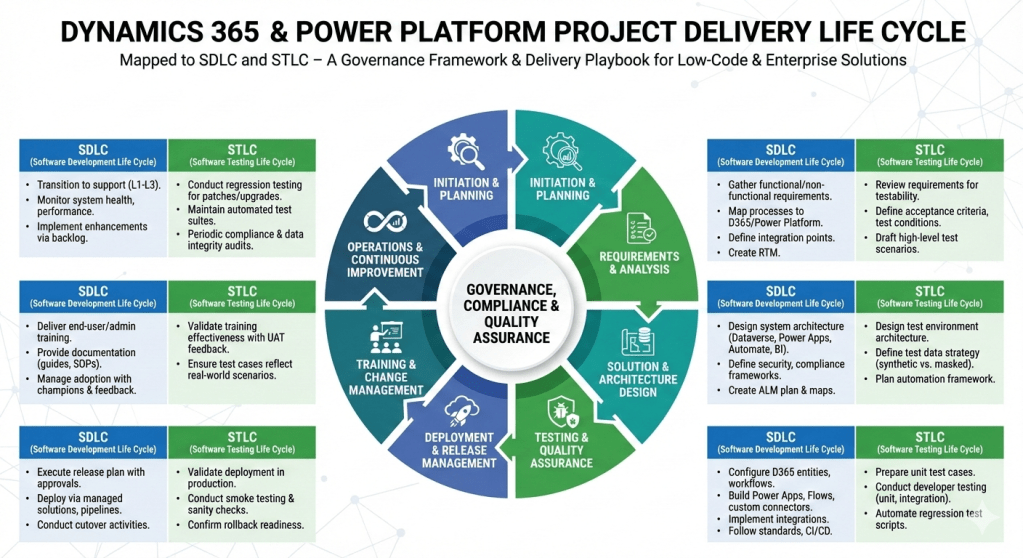
Here’s a step‑by‑step project delivery life cycle for Dynamics 365 & Power Platform projects, mapped to both SDLC (Software Development Life Cycle) and STLC (Software Testing Life Cycle). I’ve structured it so you can use it as a governance framework or a delivery playbook.
Dynamics 365 & Power Platform Project Delivery Life Cycle
1. Initiation & Planning
SDLC:
Define business objectives, scope, and success criteria.
Identify stakeholders, governance model, and compliance requirements.
Conduct feasibility study and ROI analysis.
STLC:
Define test strategy aligned with business goals.
Identify quality metrics, compliance standards, and risk areas.
2. Requirements & Analysis
SDLC:
Gather functional and non‑functional requirements (workshops, interviews, user stories).
Map business processes to Dynamics 365 modules and Power Platform capabilities.
Follow coding standards, version control (GitHub/Azure DevOps), and CI/CD pipelines.
STLC:
Prepare unit test cases.
Conduct developer testing (unit, integration).
Automate regression test scripts.
5. Testing & Quality Assurance
SDLC:
Conduct system testing, UAT, performance testing, and security validation.
Validate integrations and data migration.
STLC:
Test Planning: Finalize test plan, entry/exit criteria.
Test Design: Create detailed test cases, test scripts, and data sets.
Test Execution: Run functional, regression, performance, and security tests.
Defect Management: Log, track, and resolve defects in Azure DevOps/Jira.
Test Closure: Document results, lessons learned, and sign‑off.
6. Deployment & Release Management
SDLC:
Execute release plan with governance approvals.
Deploy via managed solutions, pipelines, or release automation.
Conduct cutover activities (data migration, user provisioning, environment setup).
STLC:
Validate deployment in production.
Conduct smoke testing and sanity checks.
Confirm rollback strategy readiness.
7. Training & Change Management
SDLC:
Deliver end‑user training, admin training, and governance workshops.
Provide documentation (user guides, SOPs, governance playbooks).
Manage adoption with change champions and feedback loops.
STLC:
Validate training effectiveness with UAT feedback.
Ensure test cases reflect real‑world scenarios.
8. Operations & Continuous Improvement
SDLC:
Transition to support (L1, L2, L3).
Monitor system health, performance, and compliance.
Implement enhancements via backlog grooming.
STLC:
Conduct regression testing for patches and upgrades.
Maintain automated test suites for continuous validation.
Periodic audits for compliance and data integrity.
This framework ensures governance, compliance, and quality assurance are embedded throughout delivery. It’s especially powerful for Dynamics 365 & Power Platform projects where configuration, low‑code development, and integrations coexist with enterprise‑grade testing.
What’s New in Copilot Studio: September 2025 – Expanding Reach, Automation, and Analytics
The September updates focused on three core areas: building richer agent experiences (specifically via Computer Use and WhatsApp), advanced developer tools like Code Interpreter, and deeper ROI/Analytics for measuring business impact.
Real-time User Journey: Computer Use (Public Preview)
The most innovative journey introduced is the ability for an agent to interact with UIs like a human:
Scenario Discovery: A user needs to enter data into an old legacy desktop application that doesn’t have an API.
Instruction: The user tells the agent, “Open the legacy ERP, look up invoice #123, and copy the total into this Excel sheet.”
Vision & Reasoning: The agent uses its “vision” to see the screen and its “reasoning” to identify buttons and text fields.
Execution: On a hosted Windows 365 browser or local device, the agent moves the virtual mouse, clicks, and types to complete the task.
Completion: The agent confirms the data has been moved and provides a screenshot or log of the completed action.
Step-by-Step: How to Enable WhatsApp (General Availability)
With WhatsApp integration now GA, you can deploy agents to customers globally:
Step 1: Prerequisites: Ensure you have a Meta Business Account and a verified phone number for WhatsApp.
Step 2: Access Channels: In Copilot Studio, open your agent and go to the Channels tab.
Step 3: Select WhatsApp: Choose WhatsApp from the list of available channels.
Step 4: Connect to Meta: Follow the guided wizard to link your Copilot Studio agent to your Meta Business Manager.
Step 5: Configure Interactions: Set up how the agent should handle attachments (images/files) and authentication (via phone number).
Step 6: Go Live: Once connected, your agent is accessible to anyone messaging that verified WhatsApp number.
Infographic: Scaling and Measuring AI Impact
The September update introduced a suite of “Enterprise-Ready” tools to manage agents at scale:
Capability
What it Does
Business Value
Code Interpreter (GA)
Executes Python code directly within agents.
Solves complex math, data visualizations, and CRUD operations on Dataverse.
ROI Analysis (GA)
Tracks savings in time or money per agent run.
Provides real-time data to justify AI investment and prioritize projects.
File Groups (GA)
Organizes up to 12,000 files into 25 groups.
Improves knowledge retrieval accuracy and reduces “context chaos.”
Agents Client SDK
Embeds agents in native Android, iOS, or Windows apps.
Keeps users in their flow of work without switching to Teams or Web.
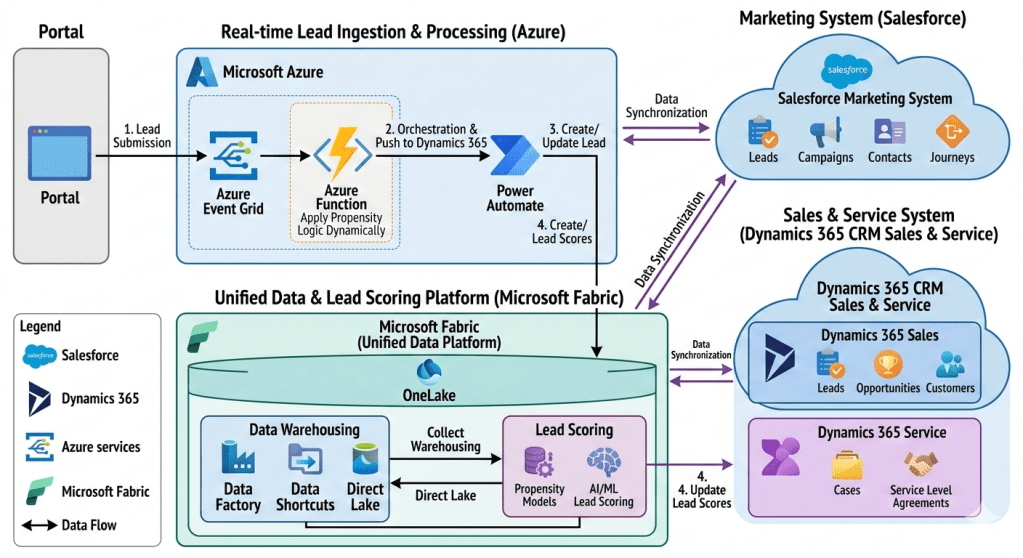
This document outlines the technical architecture of an advanced lead management and customer relationship ecosystem from one of my past implementations of an insurance company. The system integrates multiple SaaS and cloud platforms to create a seamless, real-time, and data-driven workflow for capturing, qualifying, and converting leads. At its core, it leverages the strengths of Salesforce for marketing orchestration, Dynamics 365 for core sales and service, Microsoft Azure for real-time lead ingestion and intelligent orchestration, and Microsoft Fabric as a unified data platform for comprehensive data warehousing and AI-powered lead scoring. The primary goal is to provide sales and marketing teams with a complete, 360-degree view of the customer while dynamically optimizing lead prioritization through sophisticated AI models.
Section 1: Architecture Overview
The architecture is structured into four main functional areas, connected by robust data flows and integration points:
Lead Ingestion Point: Represented by the ‘Portal,’ this is the primary source for all incoming leads.
Real-time Lead Ingestion & Processing (Microsoft Azure): This cloud-native layer captures lead data, applies initial dynamic logic, and orchestrates the creation of lead records in the CRM system.
CRM Ecosystem (Salesforce and Dynamics 365): A best-of-breed CRM strategy where specialized systems manage distinct customer relationship lifecycle phases:
Dynamics 365 CRM Sales & Service: Acts as the primary CRM for sales teams (managing leads, opportunities, and customers) and service teams (managing cases and SLAs).
Unified Data & Lead Scoring Platform (Microsoft Fabric): The analytical heart of the system, consolidating data from all platforms into a single logical data lake (OneLake) for data warehousing and to fuel advanced AI/ML lead scoring.
Section 2: External Lead Ingestion
2.1 The Portal
The entire workflow begins at the ‘Portal’ block on the far left. The Portal is a public-facing web application, landing page, or external system where potential leads submit their information via a web form. This form captures essential details such as name, email address, company, job title, and the lead’s specific interests. This action is crucial as it creates the initial ‘digital footprint’ of the lead.
Section 3: Real-time Lead Ingestion & Processing with Microsoft Azure
Once a lead submits information via the Portal, the system transitions into real-time processing within the Microsoft Azure ecosystem. This section is designed for low-latency, event-driven operations, ensuring no lead is missed and initial classification is instant.
3.1 Step 1: Lead Submission (Portal to Azure Event Grid)
The first numbered step shows data flowing from the Portal to ‘Azure Event Grid’. When a lead form is submitted, the Portal generates a standard ‘Lead Created’ event. This event is published to an Azure Event Grid topic, which acts as a highly scalable, real-time event routing service. This decoupling is essential: it allows the Portal to submit the lead instantly without waiting for subsequent, potentially slower processing steps, making the portal highly responsive.
3.2 Intelligent Processing (Azure Event Grid to Azure Function)
Azure Event Grid routes the incoming ‘Lead Created’ event to a subscribing Azure Function. This Azure Function, the central processing unit of the ingestion layer, is serverless, running code only when triggered. It is annotated with ‘Apply Propensity Logic Dynamically.’
The Azure Function’s Role and Dynamic Propensity Logic:
This is a critical, intelligent component. The Azure Function performs several immediate tasks:
Data Validation and Transformation: It parses the JSON payload from the Portal, validating data types and transforming it into a canonical lead format.
Applying Propensity Logic Dynamically: This is the application of lightweight, dynamic rules or a small, pre-trained machine learning model designed for instant action. “Dynamically” implies that these rules are not hard-coded but can be updated or fetched from a configuration system on the fly.
What this means: For example, the function could check a rule like: “If company size > 100 AND location = ‘USA’ AND product interest = ‘ILP’, then direct-route to the enterprise sales team via a special field.”
Propensity: At this stage, it’s not the full-scale, historical data-driven scoring done later in Fabric, but rather an initial “fit” check. The logic decides how to process the lead immediately: whether to flag it for rapid follow-up, categorize it based on dynamic business rules, or prepare specific metadata. The result of this logic is embedded into the lead record’s data payload.
Orchestration Trigger: Once initial logic is complete, the function triggers the next stage.
3.3 Step 2: Orchestration & Push to Dynamics 365 (Azure Function to Power Automate)
The Azure Function, having applied its initial logic and enriched the lead data, pushes the processed lead record to Power Automate via an HTTP connector. Power Automate is the orchestration engine for this phase, providing a low-code/no-code interface to manage the integration between Azure and the downstream CRM.
3.4 Step 3: Create/Update Lead (Power Automate to Dynamics 365 Sales)
The Power Automate flow takes the enriched lead data and performs an upsert operation (update or insert) into the ‘Dynamics 365 Sales’ module within the Dynamics 365 cloud.
The Power Automate Flow’s Role:
Dynamics 365 CRM Connector: The flow uses the standard Dynamics 365 CRM connector to authenticate and perform actions.
Lead Record Creation: If the lead is new (e.g., email not found in Dynamics 365), it creates a new ‘Lead’ record. The initial classification and metadata derived from the Azure Function’s dynamic logic are populated into the record.
Existing Lead Update: If the lead already exists, the flow updates the existing lead record, perhaps adding a new campaign activity.
This step ensures that the sales team has immediate access to a centralized, validated lead record in their primary CRM (Dynamics 365 Sales), enriched with initial intelligence from the ingestion layer.
Section 4: Primary CRM Ecosystem
The core customer relationship management activities are split between Salesforce and Dynamics 365, connected by continuous data synchronization.
4.1 Dynamics 365 CRM Sales & Service
Dynamics 365 CRM, the central cloud container on the right, is the primary application suite for sales and service teams.
Dynamics 365 Sales: This module contains essential CRM entity blocks:
Leads: As detailed above, leads created via Power Automate are stored here. Sales reps manage the lead qualification process within this module.
Opportunities: Qualified leads are converted into Opportunities, where sales teams manage the sales pipeline, track deals, and forecast revenue.
Customers: Once an opportunity is won, the lead is converted into a full customer record, including primary Account and Contact details.
Dynamics 365 Service: This module supports the customer after the sale:
Cases: It tracks all customer support requests and issues, providing service reps with a structured workflow to resolve problems.
Service Level Agreements (SLAs): It defines and manages the agreed-upon performance metrics for customer service (e.g., initial response time, resolution time), ensuring customer support meets predefined standards.
The combination of Sales and Service data within the single Dynamics 365 instance provides a foundational customer view for sales reps, showing them both pipeline activity and post-sales service interactions.
4.2 Salesforce Marketing System
The Salesforce cloud, in the upper right, is dedicated to advanced marketing operations. A “Data Synchronization” arrow shows continuous data exchange with the main Dynamics 365 Sales & Service container.
Marketing Data Entities:
Leads & Contacts: Salesforce Marketing maintains its own view of Leads and Contacts for marketing activities, synchronized from Dynamics 365. This includes historical lead behaviour.
Campaigns: This module manages marketing campaigns across various channels (email, social, web).
Journeys: This represents Salesforce Marketing Cloud’s “Journey Builder,” a powerful tool for designing and automating multi-channel customer journeys (e.g., welcome series, re-engagement campaigns) that deliver personalized messages at scale.
Salesforce is used because of its specialized marketing capabilities, while the actual sales process (opportunities, final customer conversion) resides in Dynamics 365. The data sync ensures that when a new lead is created in Dynamics 365, it flows to Salesforce to be nurtured; conversely, when a marketing campaign achieves a significant milestone (e.g., a lead hits a nurture goal), that information can be synchronized back to Dynamics 365 to update the lead’s status.
Section 5: Unified Data & Lead Scoring Platform (Microsoft Fabric)
This is the analytical foundation and most innovative section of the architecture. Microsoft Fabric acts as a single, unified analytics platform, consolidating data from all other systems into a single logical data lake to power both traditional reporting and advanced AI.
5.1 Data Ingestion into Microsoft Fabric (Sync Arrows and Ingestion Paths)
The diagram shows multiple arrows feeding data into Microsoft Fabric from Salesforce, Dynamics 365, and the lead ingestion stream.
Data Synchronization (Salesforce/Dynamics 365 <-> Microsoft Fabric): Arrows indicate data synchronization from both CRM systems into Fabric’s central OneLake. This provides the unified “360-degree view” by pulling marketing, sales, service, and lead history data into a single location.
Data Warehousing (Data Factory, Data Shortcuts, Direct Lake): These components illustrate how data is moved and unified:
Data Factory: Used to create complex ELT (Extract, Load, Transform) data pipelines, moving large volumes of data from various sources (perhaps legacy databases or other APIs) into OneLake.
Data Shortcuts: This is a crucial Fabric feature, allowing data to be left in its source location (like Azure Data Lake Storage Gen2 or AWS S3) while creating a “shortcut” that makes it appear as if it’s stored directly within OneLake. This eliminates the need for data duplication and extra movement.
Direct Lake: A high-performance capability in Microsoft Fabric that enables large data volumes stored in OneLake (in Delta Parquet format) to be loaded and queried directly by analytics tools (like Power BI) without intermediate data processing or caching, ensuring performance and “freshness.”
These tools combine to populate the unified OneLake with all relevant, normalized customer data.
Real-time Ingestion Path (Power Automate and Azure Function -> OneLake): In addition to the main sync, the diagram implies (via “Lead Ingestion” and “Direct Lake”) that real-time data from the initial lead ingestion (from the Azure Function/Power Automate flow) can be fed directly into OneLake, making new leads immediately available for the complex scoring process.
5.2 OneLake: The Unified Data Lake
At the center of Fabric is ‘OneLake.’ This is the foundational logical data lake, acting as the single source of truth for the entire organization. By implementing ” shortcuts,” OneLake physically might span multiple cloud locations, but it looks like a single, structured file system to any analytical service within Fabric. Data from Salesforce, Dynamics 365, and the real-time ingestion stream are all stored here.
5.3 Lead Scoring within Microsoft Fabric
This module is the core application for advanced, AI-powered lead scoring, which differs significantly from the initial “Propensity Logic” in the Azure Function. The full process within Fabric involves:
Data Unification: Aggregating data from OneLake, including:
Sales history (closed-won/lost opportunities from Dynamics 365 sync).
Customer service case history (from Dynamics 365 Service sync).
Real-time lead behaviour and attributes (from ingestion).
Propensity Models: Building and training advanced machine learning models (e.g., a predictive “propensity to buy” model) using historic data from OneLake.
AI/ML Lead Scoring: Applying these models to new leads. These sophisticated models can process hundreds of variables and identify non-obvious patterns to generate a highly precise, predictive lead score (e.g., from 1 to 100). This provides sales reps with a truly data-driven prediction of a lead’s likelihood to convert, which is far more powerful than the rules-based “propensity check” done at the ingestion point.
5.4 Step 4: Update Lead Scores (Fabric Lead Scoring to Dynamics 365 Sales)
The final numbered step closes the loop. After the AI/ML Lead Scoring process in Fabric generates an enhanced score, it pushes this score back to ‘Dynamics 365 Sales.’ This is done via an API connector or a scheduled data pipeline within Fabric (e.g., using Data Factory or a Spark job). The updated score populates a dedicated ‘Lead Score’ field on the original lead record in Dynamics 365 Sales.
This ensures sales teams work with the absolute best intelligence. A sales rep will now see a lead, created instantly from the portal, enriched with dynamic classification from the Azure Function, and continuously optimized with an AI-driven lead score from Fabric, allowing them to prioritize high-value opportunities with incredible precision.
Conclusion and Architecture Benefits
This detailed multi-cloud and multi-SaaS architecture provides several compelling advantages:
Best-of-Breed Specialization: It uses specialized platforms (Salesforce for marketing, Dynamics 365 for CRM core) without sacrificing data visibility, as both are integrated via bidirectional sync.
Intelligent, Real-time Ingestion: The combination of Azure Event Grid, Azure Functions (for dynamic logic), and Power Automate ensures all leads are captured, processed, and available in the CRM instantly, while immediately receiving a first pass of classification based on business rules.
Unified Customer View with Microsoft Fabric: The central OneLake provides a true “360-degree view,” consolidating data from Salesforce and Dynamics 365 (including sales and service) in one location, removing data silos.
Advanced AI Optimization (Continuous Improvement): The key differentiator is the AI-driven lead scoring within Fabric. It moves beyond simple rules and leverages historic data across the entire customer lifecycle to provide highly accurate, predictive prioritization, closing the loop with a score update in Dynamics 365. This ensures sales teams are always working on the leads with the highest dynamic and predictive propensity to buy.
Data Freshness and Efficiency: The use of Data Shortcuts and Direct Lake in Microsoft Fabric provides real-time access to large datasets without costly data movement or duplication, ensuring analytics are always based on current data.
(The expansion of Microsoft’s AI-powered, standalone contact center solution to federal, state, and local government agencies).
Real-time User Journey: Public Sector Engagement
This journey illustrates how a resident interacts with a government agency using the secure, GCC-hosted platform:
Resident Inquiry: A resident visits a city portal to ask about new zoning laws or waste management schedules. They start a chat with the multilingual conversational IVR or a digital bot.
AI-Powered Self-Service: Using Copilot, the system searches internal government documents and knowledge bases to provide a context-aware, personalized answer while maintaining FedRAMP High security standards.
Secure Escalation: If the query is complex, the system uses Unified Routing to transfer the chat to a specialized public service representative. The representative receives a full Copilot-generated summary of the interaction so far.
Integrated Case Management: Because the system is unified, the representative can instantly create or update a case in the agency’s record system (Dynamics 365 or a 3rd-party solution like Salesforce) without switching windows.
Transparent Governance: Every step of the interaction is recorded and auditable, ensuring the agency remains compliant with public sector transparency and data privacy regulations.
Step-by-Step: How to Enable This Feature
Government IT administrators can deploy the Contact Center in their GCC environment following these steps:
Step 1: Licensing and Provisioning: Acquire the Dynamics 365 Contact Center Digital Add-on for Customer Service Enterprise or the standalone SKU through a government-certified Microsoft reseller.
Step 2: Environment Setup: Log in to the Power Platform Admin Center (GCC instance). Create a new environment or select an existing one where you intend to host the contact center.
Step 3: Enable Voice and Digital Channels: In the Contact Center admin center, navigate to Channels. Set up the Voice channel (via Azure Communication Services) and any digital messaging channels (SMS, Chat, or Social) required by the agency.
Step 4: Configure Unified Routing: Define the routing logic based on resident intent, language, or agent capacity. For government agencies, this often involves mapping intents to specific municipal departments.
Step 5: Activate Copilot Features: Enable the Copilot-first experience for service reps. This includes live summaries, knowledge drafting, and real-time translation features to support a diverse community.
Step 6: Compliance Validation: Use the Microsoft Service Trust Portal to verify that your specific configuration aligns with FedRAMP High and other regulatory requirements relevant to your agency.

 GM Dynamics & Agentic AI Consulting